Microsoft Store
How to take a finished MōBrowser application to a live Microsoft Store listing, using one real submission as the example.
Overview
In this tutorial, we publish MoMarkdown, a small Markdown notes editor built with MōBrowser, to the Microsoft Store. The Store hosts the application and delivers updates to everyone who installed it.
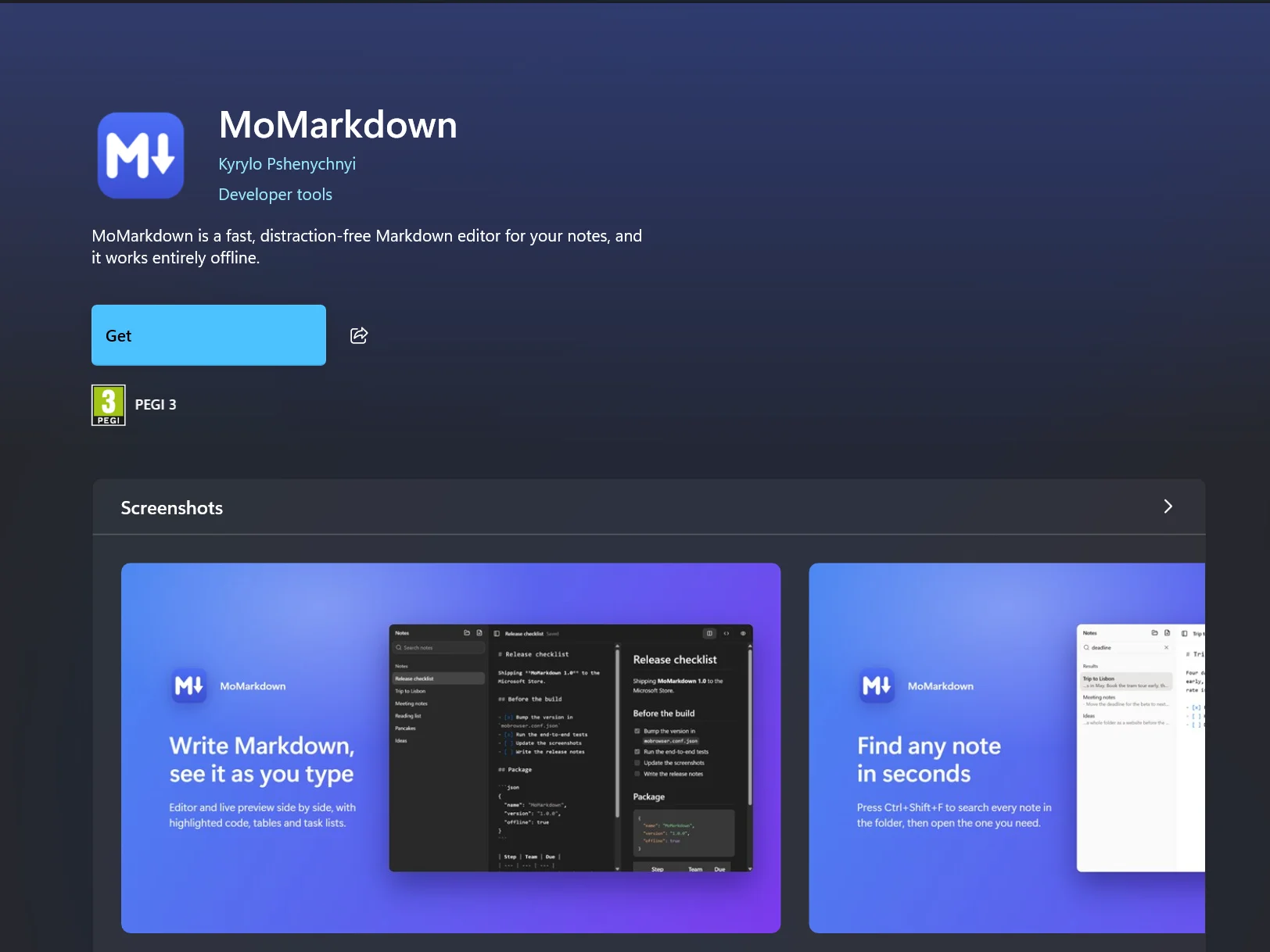
Here is the result: the MoMarkdown listing in the Microsoft Store.
We publish MoMarkdown as an MSIX package, the Windows package format that
installs, updates, and removes an application as a single unit. MōBrowser
builds the package with one command, npm run pack -- --msix, and generates
the package manifest and the 50 logo and tile images for it. What’s left is the work in Partner
Center, Microsoft’s portal for Store publishers, and this tutorial walks
through each of its forms with the values we entered for MoMarkdown.
For every configuration option and edge case, see the Publishing to Microsoft Store guide. This tutorial links to it instead of repeating it.
Prerequisites
To follow this tutorial, you need:
- A MōBrowser application on version 2.20.0 or later, the first version that builds MSIX packages.
- A Windows 10 (64-bit) or later machine with the
Windows SDK
installed. MōBrowser runs
makeappx.exeandmakepri.exefrom it. - A square logo of 1024×1024 pixels or larger, in PNG or ICO format. MōBrowser generates all package images from it.
- A Microsoft Store developer account in Partner Center. Registration is free for individuals and companies. See Open a developer account.
The sample application
MoMarkdown is an offline Markdown editor. It opens a folder of .md files,
shows the editor and a live preview side by side, and exports notes to HTML
or, through the print preview, to PDF.
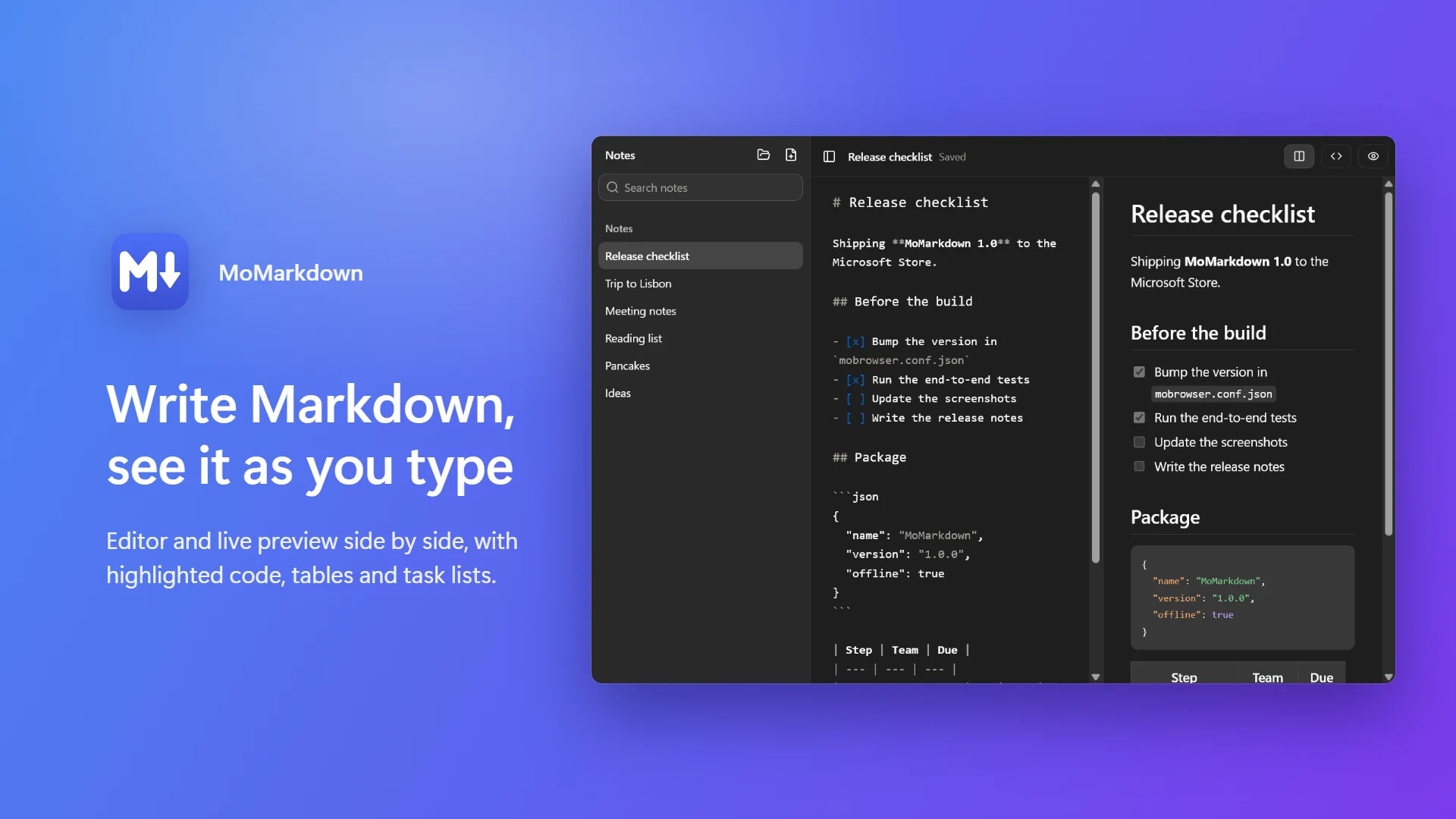
MoMarkdown is more than a web page in a window. It reads and writes files in folders the user picks, opens native file dialogs, and has a native menu with keyboard shortcuts. It sends no data anywhere and needs no account, which keeps the privacy and age rating answers short.
Reserve the name
Every package in the Store carries an identity that Partner Center assigns
to one application name. So the first step is to reserve the name,
MoMarkdown in our case, as described in
Reserving the application in Partner Center.
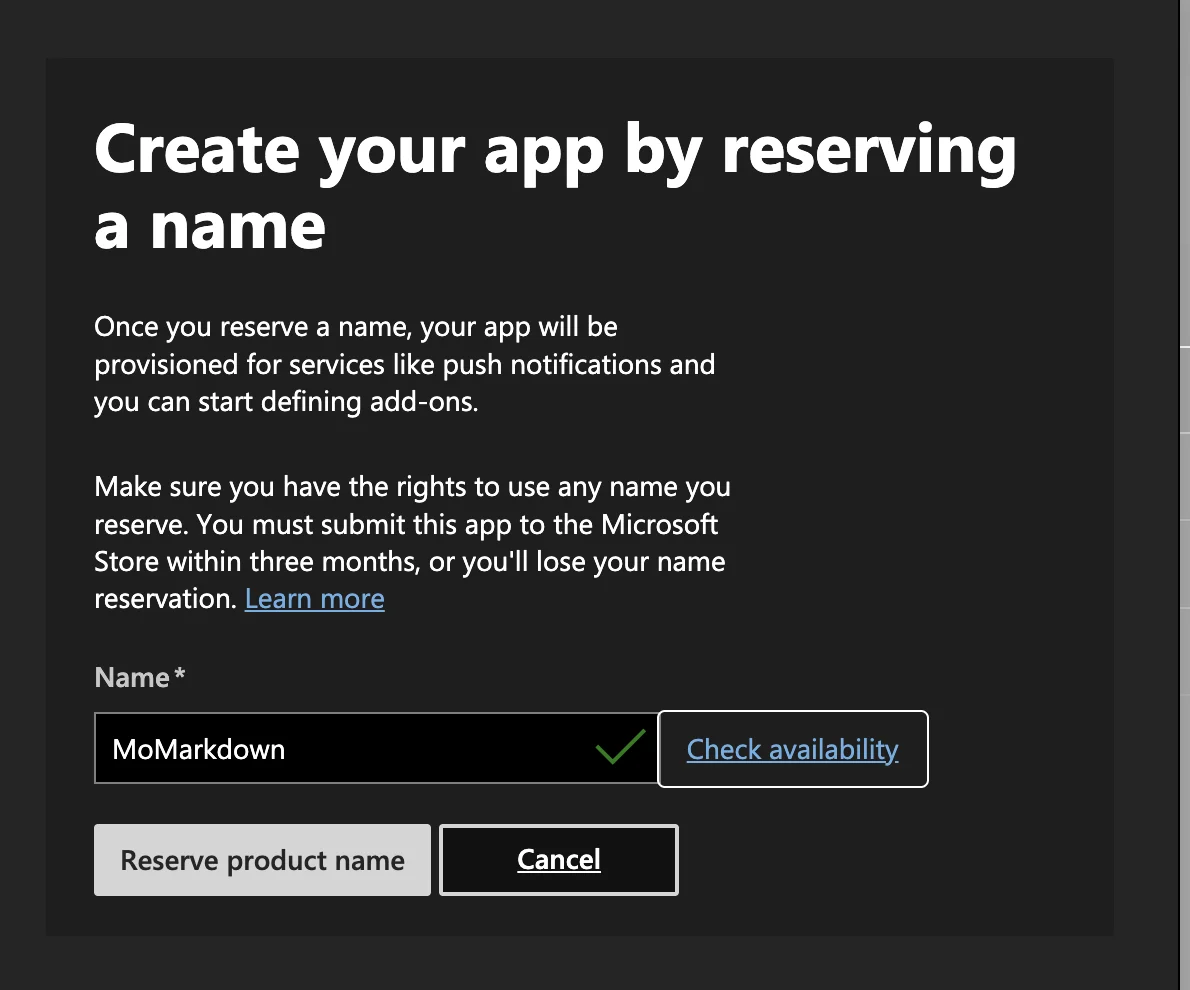
Partner Center opens the application overview. From now on, the package must use this name; otherwise, Partner Center rejects the upload. The reservation lasts three months: submit the application within that time, or the name becomes available to others again.
Copy the package identity
In the application overview, expand Product management and select Product identity. Three values on this page go into the package:
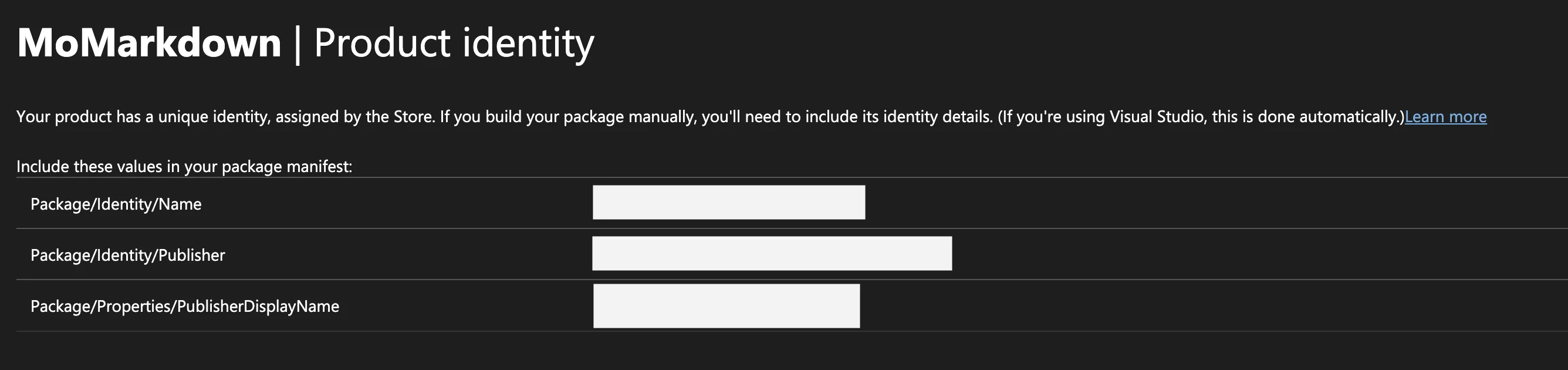
For MoMarkdown, they are:
| Partner Center value | MoMarkdown |
|---|---|
| Package/Identity/Name | YourPublisher.MoMarkdown |
| Package/Identity/Publisher | CN=00000000-0000-0000-0000-000000000000 |
| Package/Properties/PublisherDisplayName | Your Publisher |
We replaced our publisher name with YourPublisher and Your Publisher,
and the publisher ID with zeros. Your page shows your own values.
Copy the values exactly. They are case-sensitive, and Partner Center checks
them against the package when you upload it. In the next step, they go into
mobrowser.conf.json.
Configure the package
Open mobrowser.conf.json in the project root and add the msix section
under app → bundle → Windows → installer, next to the exe
section of the regular installer:
{
  "app": {
    "name": "MoMarkdown",
    "bundle": {
      "Windows": {
        "installer": {
          "exe": { ... },
          "msix": {
            "identityName": "YourPublisher.MoMarkdown",
            "publisher": "CN=00000000-0000-0000-0000-000000000000",
            "publisherDisplayName": "Your Publisher",
            "displayName": "MoMarkdown"
          }
        }
      }
    }
  }
}
The first three properties are the values from the Product identity
page. The displayName property must be one of the reserved names. For
MoMarkdown, it equals app.name, so the property is optional here.
MōBrowser takes the rest of the package details from the existing
configuration: the version from app.version, the tile description from
app.description, and the languages from app.locales. For the other
optional properties, see
Configuring the project.
Generate the logo images
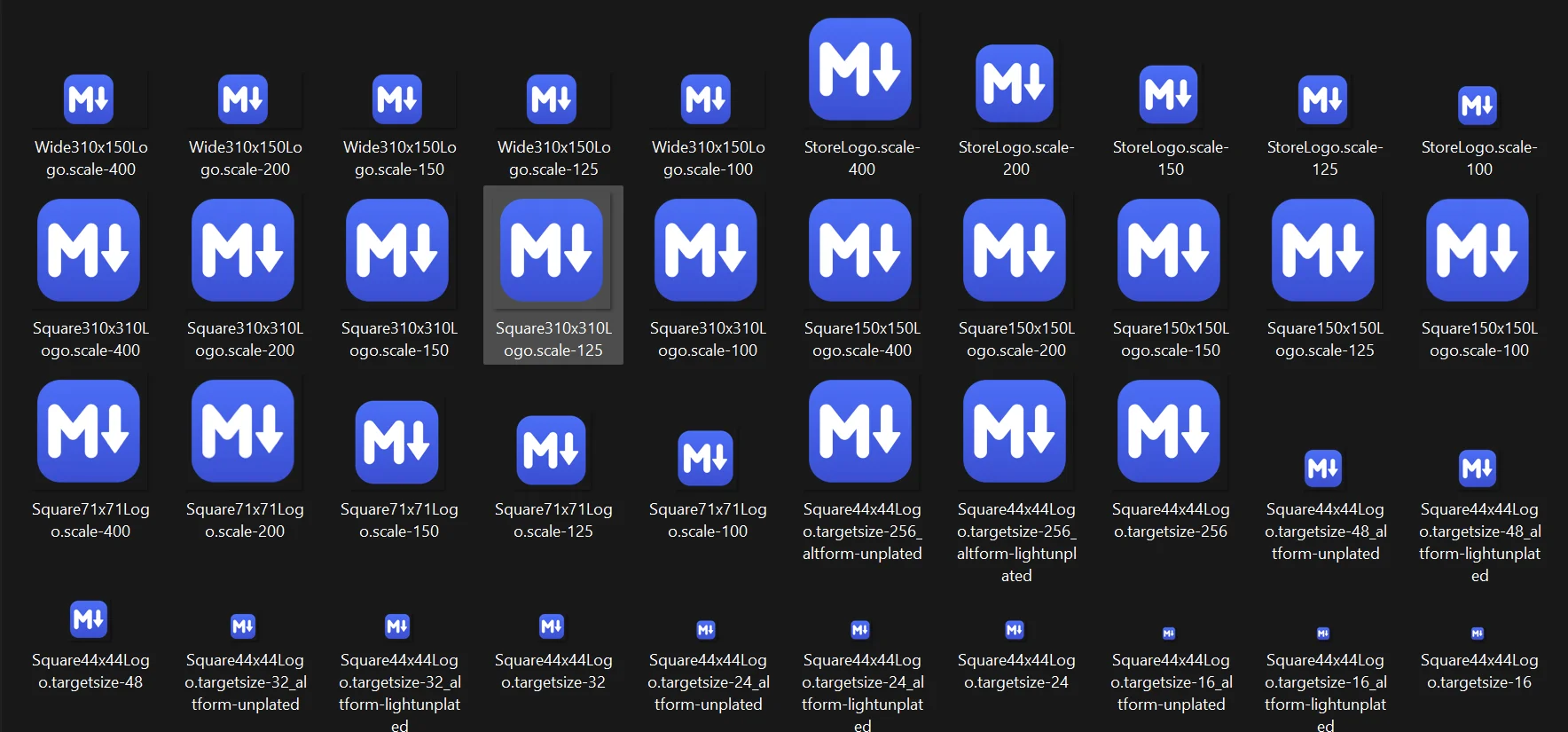
Windows and the Store show the application with tile and logo images in several sizes and display scales: 50 PNG files in total. MōBrowser generates the whole set from one square image. In the project root, run:
npm run mobrowser -- icon --msix --source assets/icon-1024.png
The command reports where it put the images:
MSIX assets have been generated successfully and written to assets/msix
When you pack the application, MōBrowser picks up this directory automatically, so no extra configuration is needed. Commit the directory to keep the images stable between builds, or edit any of them by hand.
Build the package
Build the application, then pack it with the --msix flag:
npm run build
npm run pack -- --msix
For MoMarkdown, packing took about 18 seconds:
✓ Generating MSIX package [17.47s]
MSIX package location: D:\Projects\MoMarkdown\build\dist\win-x64\msix\MoMarkdown-1.0.0-x64.msix
The package is unsigned: upload it to Partner Center, which signs it for the Store.
The package is unsigned on purpose. Partner Center doesn’t need a signature on the upload, because the Store signs the package with a Microsoft certificate before publishing it.
What’s in the package
Besides the application files, the 50 images, and the resources.pri
resource index, the package contains the AppxManifest.xml manifest that
MōBrowser generated from the configuration above. You never edit it, but it helps to know what it declares:
The generated AppxManifest.xml of MoMarkdown
<?xml version="1.0" encoding="utf-8"?>
<Package
  xmlns="http://schemas.microsoft.com/appx/manifest/foundation/windows10"
  xmlns:uap="http://schemas.microsoft.com/appx/manifest/uap/windows10"
  xmlns:uap10="http://schemas.microsoft.com/appx/manifest/uap/windows10/10"
  xmlns:rescap="http://schemas.microsoft.com/appx/manifest/foundation/windows10/restrictedcapabilities"
  IgnorableNamespaces="uap uap10 rescap">
  <Identity Name="YourPublisher.MoMarkdown" Publisher="CN=00000000-0000-0000-0000-000000000000" Version="1.0.0.0" ProcessorArchitecture="x64"/>
  <Properties>
    <DisplayName>MoMarkdown</DisplayName>
    <PublisherDisplayName>Your Publisher</PublisherDisplayName>
    <Logo>Assets\StoreLogo.png</Logo>
  </Properties>
  <Resources>
    <Resource Language="en-US"/>
    <Resource uap:Scale="100"/>
    <Resource uap:Scale="125"/>
    <Resource uap:Scale="150"/>
    <Resource uap:Scale="200"/>
    <Resource uap:Scale="400"/>
  </Resources>
  <Dependencies>
    <TargetDeviceFamily Name="Windows.Desktop" MinVersion="10.0.19041.0" MaxVersionTested="10.0.26100.0"/>
  </Dependencies>
  <Capabilities>
    <rescap:Capability Name="runFullTrust"/>
  </Capabilities>
  <Applications>
    <Application Id="MoMarkdown" Executable="MoMarkdown.exe" EntryPoint="Windows.FullTrustApplication">
      <uap:VisualElements
        DisplayName="MoMarkdown"
        Description="An offline Markdown notes editor with live preview."
        BackgroundColor="transparent"
        Square150x150Logo="Assets\Square150x150Logo.png"
        Square44x44Logo="Assets\Square44x44Logo.png">
        <uap:DefaultTile
          Square71x71Logo="Assets\Square71x71Logo.png"
          Square310x310Logo="Assets\Square310x310Logo.png"
          Wide310x150Logo="Assets\Wide310x150Logo.png"/>
        <uap:SplashScreen Image="Assets\SplashScreen.png"/>
      </uap:VisualElements>
    </Application>
  </Applications>
  <Extensions>
    <uap10:Extension Category="windows.installedLocationVirtualization">
      <uap10:InstalledLocationVirtualization>
        <uap10:UpdateActions ModifiedItems="reset" DeletedItems="reset" AddedItems="keep"/>
      </uap10:InstalledLocationVirtualization>
    </uap10:Extension>
  </Extensions>
</Package>
The parts that matter for the Store:
IdentityandPublisherDisplayNamecarry the three values from Partner Center.Versionisapp.versionin the four-part form1.0.0.0.- The
runFullTrustcapability and theWindows.FullTrustApplicationentry point let MoMarkdown run as a regular desktop application, with the same permissions as before packaging. InstalledLocationVirtualizationredirects the files the application writes into its read-only installation directory to the user’s data folder. See How the application runs from the package.
What --msix did for you
Here is what building the same package without MōBrowser takes, step by step:
| Task | Without MōBrowser | With MōBrowser |
|---|---|---|
| Package manifest | Write AppxManifest.xml: identity, full-trust entry point, runFullTrust, target device family, languages | Generated from three values in mobrowser.conf.json |
| Package version | Convert the version to the four-part x.y.z.0 form and keep it in sync with the application | Taken from app.version |
| Logo and tile images | Prepare 50 PNG files: seven images in five scales, plus the icon in the sizes for the taskbar and Start menu | icon --msix from one 1024×1024 image |
| Resource index | Write a priconfig.xml file and run makepri.exe | Done during pack |
| Packaging | Lay out the files, leave out .pdb, .lib, and .exp files, and run makeappx.exe pack | Done during pack, with the newest installed Windows SDK |
| Read-only install path | Find every place the application or the runtime writes next to the executable | Installed location virtualization in the manifest |
| Built-in updater | Remember to turn off the application’s own updater | pack fails if app.updateServerUrl is set |
Test the package
Before uploading, we checked the package in two ways: with the Windows App Certification Kit, and by installing it and launching MoMarkdown from the Start menu.
Run the Windows App Certification Kit
Store certification includes the technical tests of the Windows App Certification Kit, which comes with the Windows SDK. Running it locally shows the results of these tests in minutes, before you wait for certification. In PowerShell with administrator rights, run:
$appcert = "C:\Program Files (x86)\Windows Kits\10\App Certification Kit\appcert.exe"
& $appcert reset
& $appcert test -appxpackagepath "D:\Projects\MoMarkdown\build\dist\win-x64\msix\MoMarkdown-1.0.0-x64.msix" -reportoutputpath D:\Projects\MoMarkdown\wack-report.xml
The kit writes the results to the report file. For MoMarkdown, the overall result was WARNING: 22 of 24 tests passed, and the remaining two don’t block a submission.
| Test | Result | Optional | Where the findings come from |
|---|---|---|---|
| Blocked executables | FAIL | Yes | The Chromium runtime, the updater files, and editor grammars |
| DPIAwarenessValidation | WARNING | No | MoMarkdown.exe, the launcher generated by the MōBrowser CLI |
| The other 22 tests | PASS |
Most of these findings come from files that every MōBrowser application ships, so expect the same two results for yours:
- Blocked executables looks for process-launching APIs and for any byte
sequence that spells a tool name, such as
cmd,reg, orpowershell, regardless of letter case. Chromium starts its own GPU and renderer processes, and most of the other hits are random bytes inchrome.dlland resource files. TheSquirrel.exe,velopack_libc.dll, andMoMarkdown_ExecutionStub.exefiles belong to the built-in updater, which stays off in the package. The test is optional, so a failure doesn’t fail the run. - DPIAwarenessValidation reads only the executable’s manifest and import table. Chromium turns on per-monitor DPI awareness when it starts, which this static check can’t see. On a display with 148% scaling, MoMarkdown renders text sharply rather than as a stretched bitmap.
Check the findings that point to your own code. The first MoMarkdown run
flagged powershell.exe in app.bin, the bundled application code: the app
called PowerShell to move deleted notes to the Recycle Bin. We replaced that
call with a native C++ module, and the second run no longer reported it.
Install the package locally
Windows installs an MSIX package only if it’s signed with a certificate the machine trusts, so for a local test we signed it with a self-signed certificate. The requirements are in Signing the package; here are the commands we used.
We created the certificate with the publisher value as its subject:
New-SelfSignedCertificate -Type Custom -KeyUsage DigitalSignature `
  -CertStoreLocation "Cert:\CurrentUser\My" `
  -Subject "CN=00000000-0000-0000-0000-000000000000" `
  -TextExtension @("2.5.29.37={text}1.3.6.1.5.5.7.3.3", "2.5.29.19={text}")
The command prints the thumbprint of the new certificate. We imported the
certificate into the Trusted People and Trusted Root Certification
Authorities stores of the local machine, and added signCommand to the
Windows section of mobrowser.conf.json. MōBrowser replaces
@@BINARY_PATH@@ with the path of each file it signs:
"signCommand": "\"C:/Program Files (x86)/Windows Kits/10/bin/10.0.26100.0/x64/signtool.exe\" sign /fd SHA256 /sha1 <THUMBPRINT> @@BINARY_PATH@@"
Here, <THUMBPRINT> is the thumbprint of the test certificate, and
10.0.26100.0 is the Windows SDK version on our machine. With
signCommand set, npm run build signs the application binaries too, so
build again and pack with the --sign flag:
npm run build
npm run pack -- --msix --sign --force
The version hasn’t changed, so the --force flag is needed to replace the
unsigned package from the previous step.
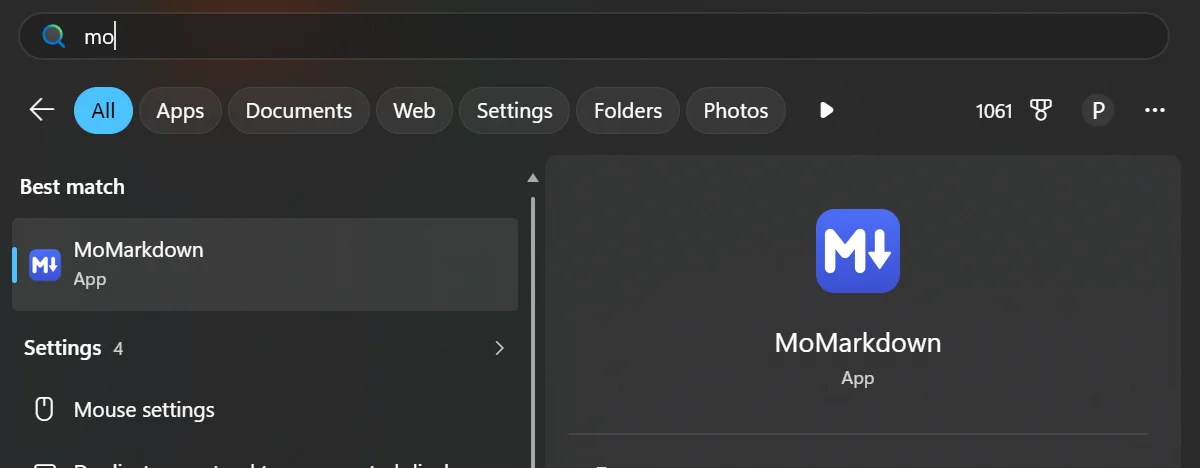
Double-click the .msix file to install it. MoMarkdown then appears in the
Start menu with the generated icon:
If you’d rather not create a certificate, you can register the unpacked package in Developer Mode instead. See Installing without signing.
Build the upload package
The test certificate is only for your machine. Before uploading, we cleared
signCommand in mobrowser.conf.json:
"signCommand": ""
Then we built and packed again:
npm run build
npm run pack -- --msix --force
Without a sign command, npm run build reports Signing application [SKIPPED]
and warns that the application code has no tamper resistance. This is expected
for the Store build. The new package and
MoMarkdown.exe inside it are both unsigned, and this is the file to upload.
Submit the application
In Partner Center, open the application overview and click Start submission in the Product release section. Partner Center creates a draft with six pages. You can fill them in any order, and the draft keeps your answers until you submit. Below are the values we entered for MoMarkdown, page by page.
Pricing and availability
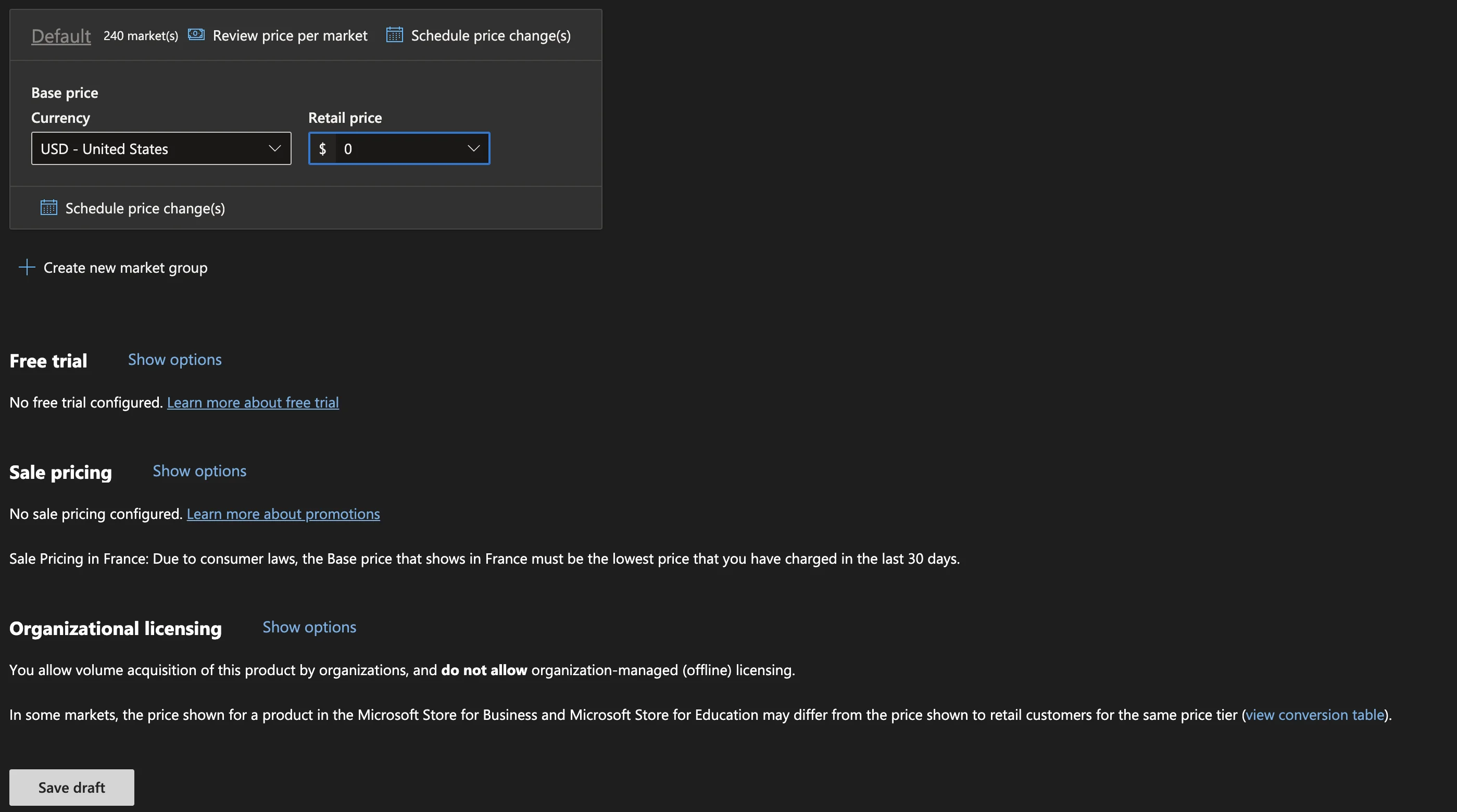
For a free application, this page needs one value: the base price. We set
Retail price to $0 in the Default market group, which covers all
240 markets. We kept the defaults for everything else: free trial, sale
pricing, organizational licensing, and the audience and release schedule.
Properties
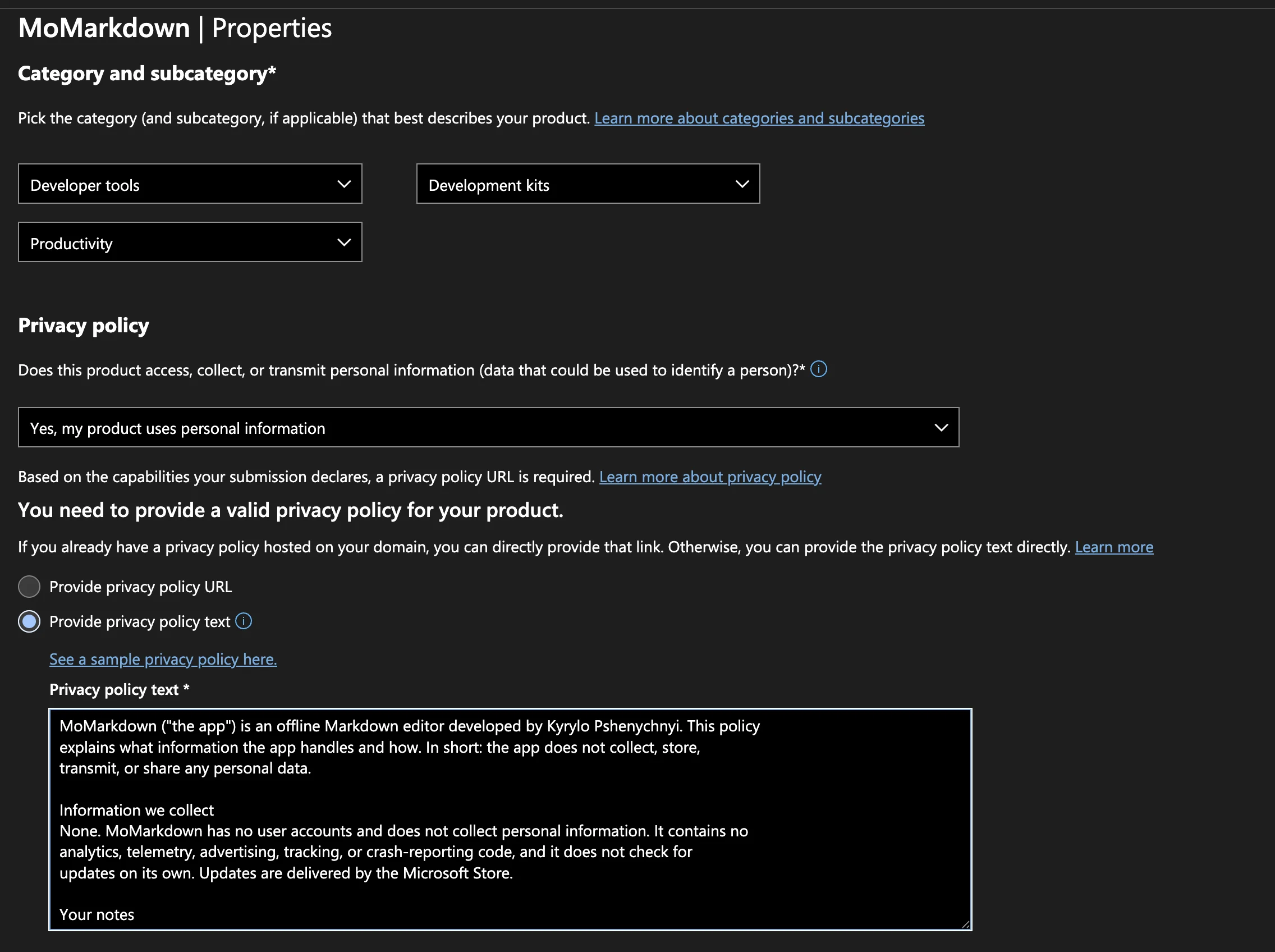
On this page, we set the category and answered the privacy questions:
| Field | MoMarkdown |
|---|---|
| Category and subcategory | Developer tools → Development kits, and Productivity |
| Personal information | Yes, my product uses personal information |
| Privacy policy | Provide privacy policy text |
The privacy questions were a surprise. MoMarkdown collects no data, yet
the Personal information field appeared with Yes, my product uses
personal information after we uploaded the package, and Partner Center
required a policy: “Based
on the capabilities your submission declares, a privacy policy URL is
required.” The capability is runFullTrust, which every MōBrowser package
declares, so expect the same for your application.
You don’t need a website for it. Select Provide privacy policy text and paste the policy into the form. Ours is a few short sections: what the application collects (nothing), where the notes are kept, and how to get in touch.
Age ratings
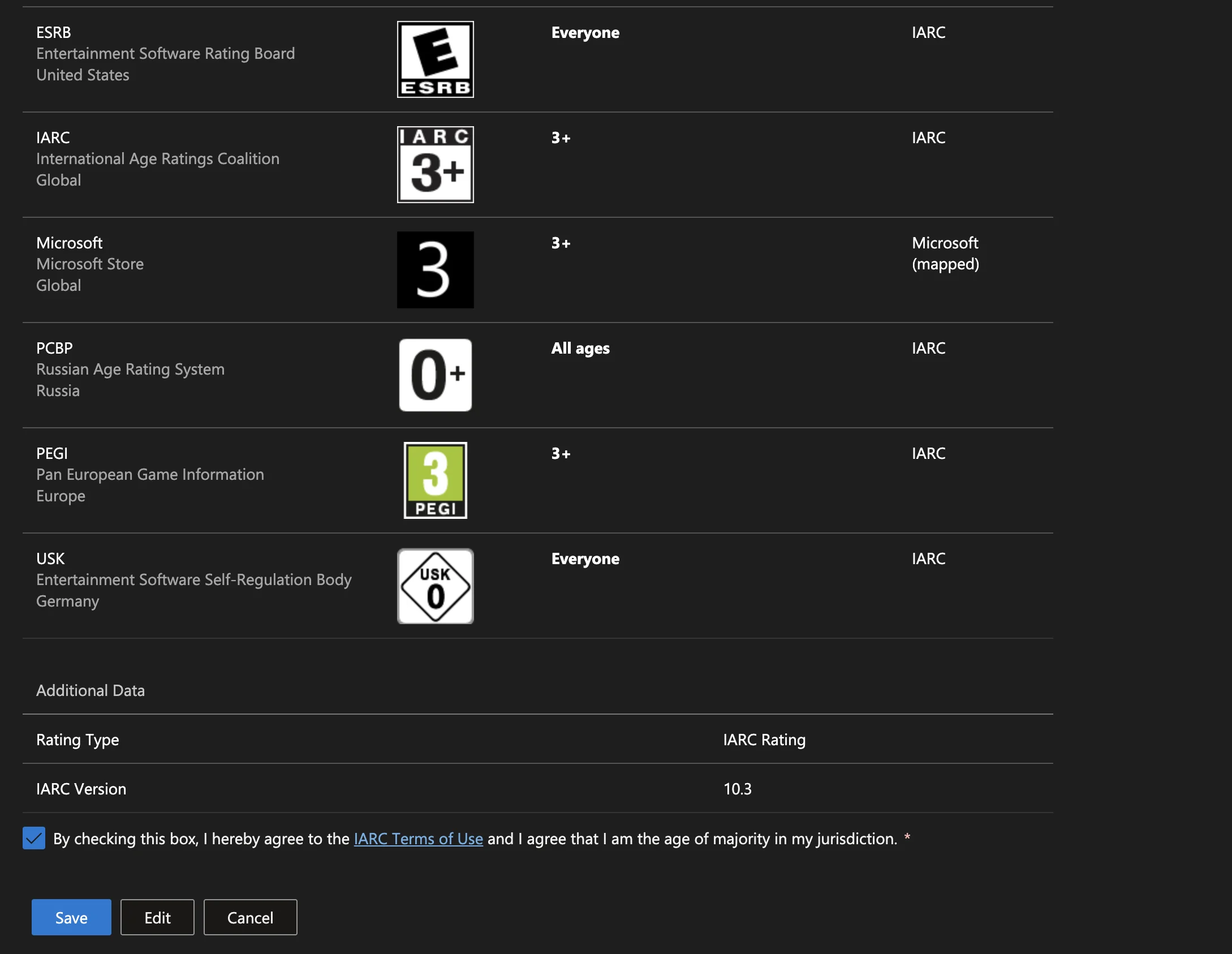
Age ratings come from the questionnaire of the International Age Rating Coalition (IARC). Partner Center asks what kind of product it is, then a few questions about its content, such as whether users can communicate with each other or buy anything. MoMarkdown has none of that, so it got the lowest rating everywhere:
| Rating authority | Rating |
|---|---|
| ESRB | Everyone |
| IARC | 3+ |
| Microsoft Store | 3+ |
| PEGI | 3 |
| USK | 0 |
To finish the page, accept the IARC terms of use and click Save.
Packages
Drag MoMarkdown-1.0.0-x64.msix, 196.8 MB, to the upload area. Partner Center
validates the package right after the upload. If the identity values in
mobrowser.conf.json don’t match the Product identity page, the error
shows up here.
For MoMarkdown, validation passed with one warning:
Package acceptance validation warning: The following restricted capabilities
require approval before you can use them in your app: runFullTrust.
This warning comes up for every MōBrowser package and isn’t an error. You request the approval on the Submission options page.
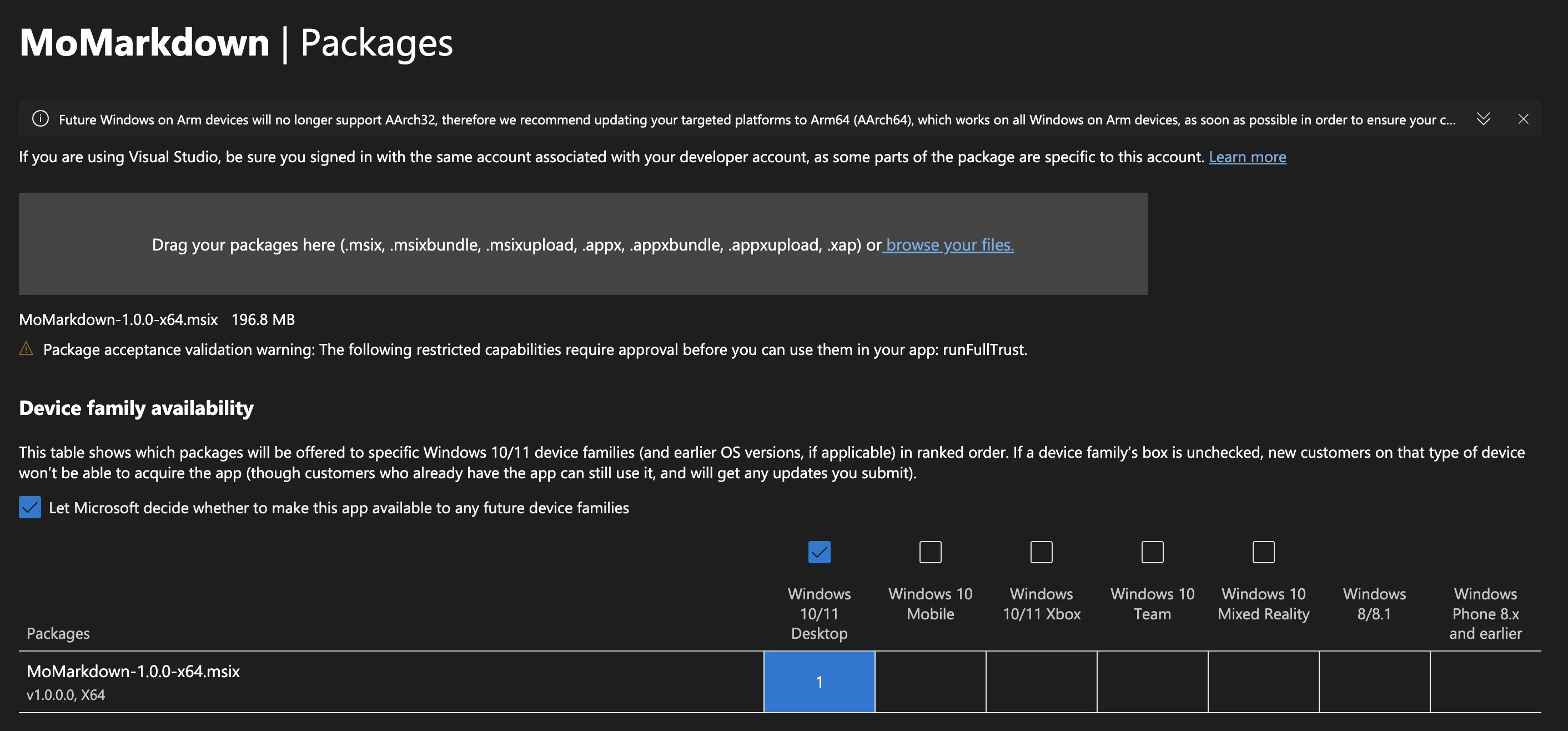
Under Device family availability, Partner Center selects Windows
10/11 Desktop on its own, because the package targets Windows.Desktop.
Leave the other device families cleared. The page also shows a banner
recommending Arm64 builds. MōBrowser builds x64 packages only, so you can
ignore it.
Store listings
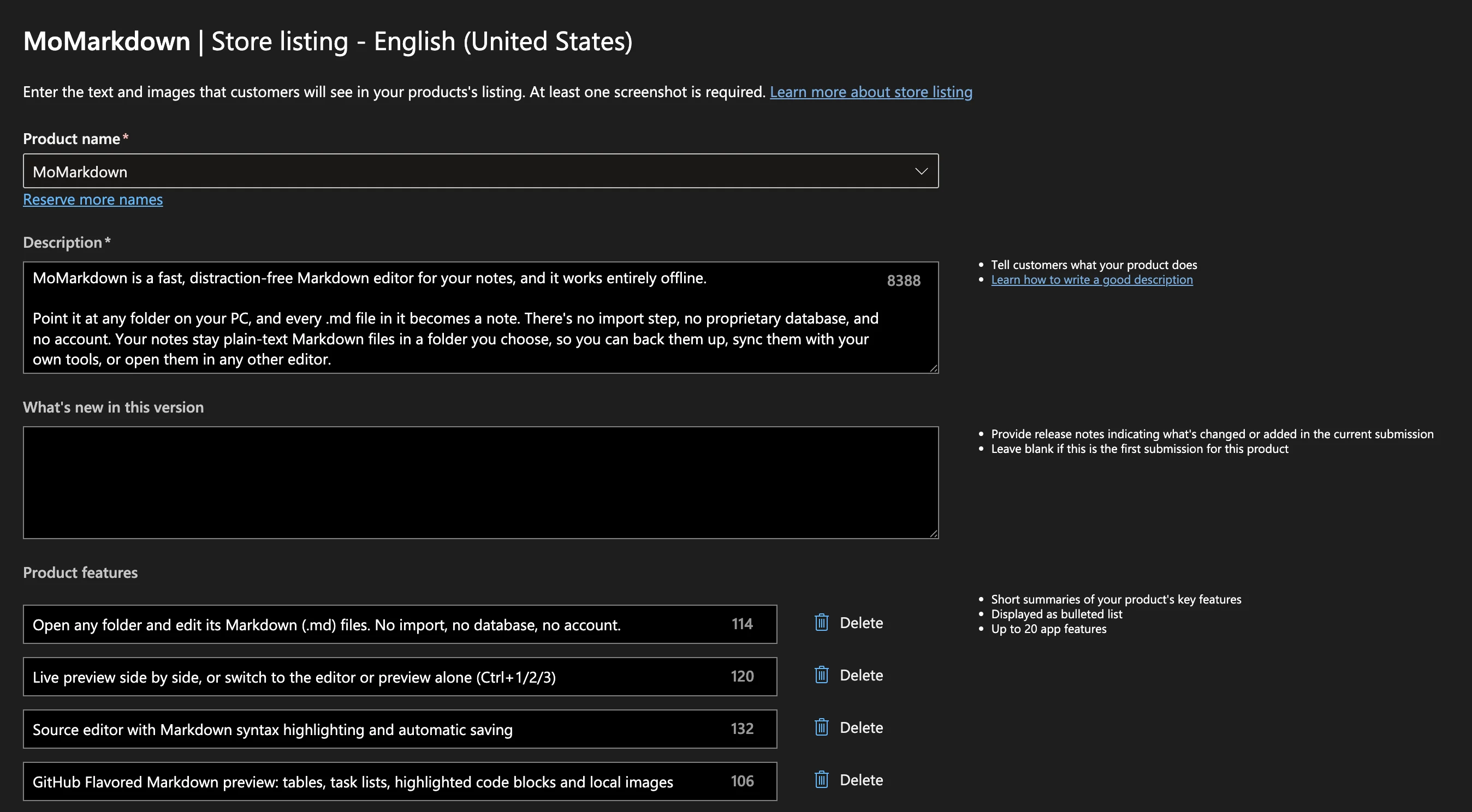
The listing is what customers see in the Store. Add a language first. English (United States) is enough to publish, and you can add other languages later. Then fill in the listing for that language:
| Field | MoMarkdown |
|---|---|
| Product name | MoMarkdown, picked from the reserved names |
| Description | What the application does, and that it’s offline with no account |
| What’s new in this version | Empty, as Partner Center suggests for a first submission |
| Product features | Short lines, one per feature, up to 20 |
| Screenshots | Store images of the main window, at least one is required |
The description of MoMarkdown opens with:
MoMarkdown is a fast, distraction-free Markdown editor for your notes, and it works entirely offline.
Point it at any folder on your PC, and every .md file in it becomes a note. There’s no import step, no proprietary database, and no account.
The first lines show before More on the listing, so put the most important points there.
Store screenshots show the application, but they don’t have to be bare window captures. Ours put the MoMarkdown window on a gradient background with a short headline next to it.
Submission options
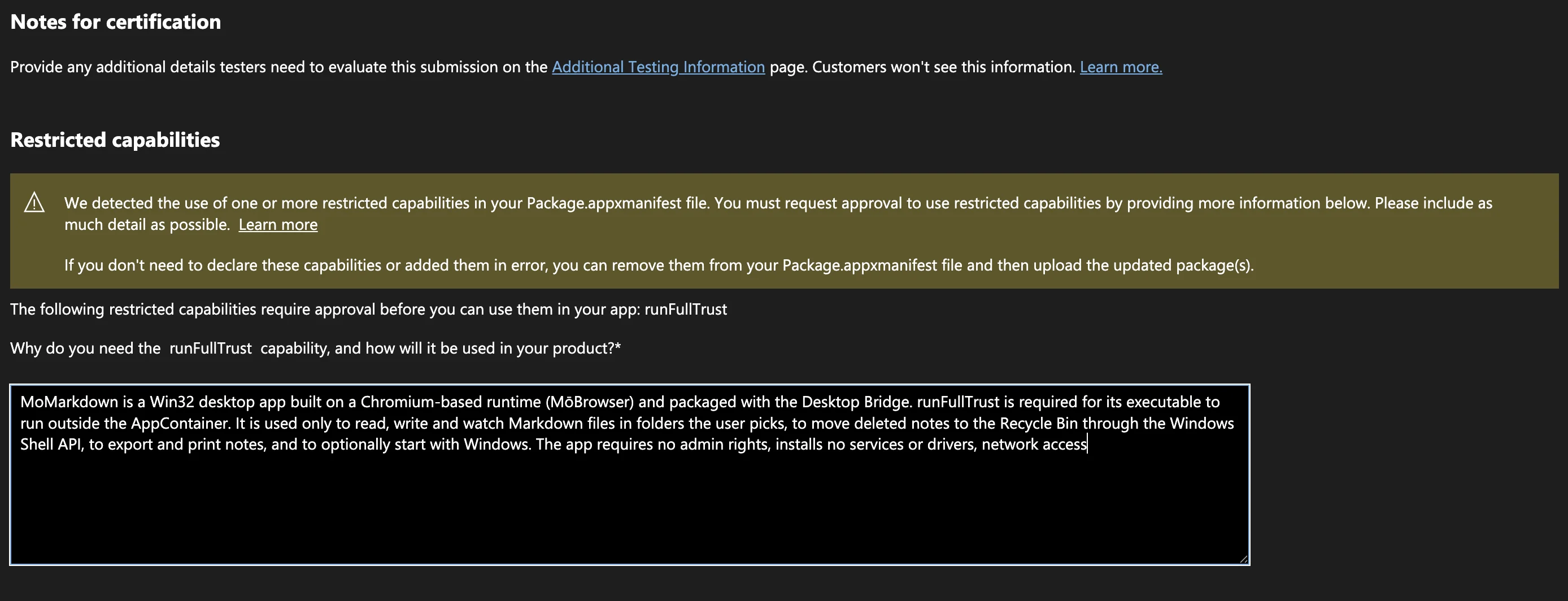
The runFullTrust capability from the package manifest is restricted, so
this page has a Restricted capabilities section with one question:
Why do you need the runFullTrust capability, and how will it be used in
your product? We answered:
MoMarkdown is a Win32 desktop app built on a Chromium-based runtime (MōBrowser) and packaged with the Desktop Bridge. runFullTrust is required for its executable to run outside the AppContainer. It is used only to read, write and watch Markdown files in folders the user picks, to move deleted notes to the Recycle Bin through the Windows Shell API, to export and print notes, and to optionally start with Windows. The app requires no admin rights, installs no services or drivers, and no network access.
Be concrete: name what your application does with full trust, and what it doesn’t do. The testers read the answer during certification.
Notes for the testers have moved to a separate Additional Testing Information page, linked from this one. Use it if your application needs a test account or has features that are hard to find. MoMarkdown needs neither, so we left it empty. We also kept the default publishing option: publish as soon as the submission passes certification.
When every page is complete, click Submit for certification on the submission overview.
Certification and going live
After you submit, the application overview shows the In certification status and the progress of the submission through four stages: Submission, Pre-processing, Certification, and Publishing. Partner Center says that certification “usually takes a few hours, but in some cases can take up to 3 business days”.
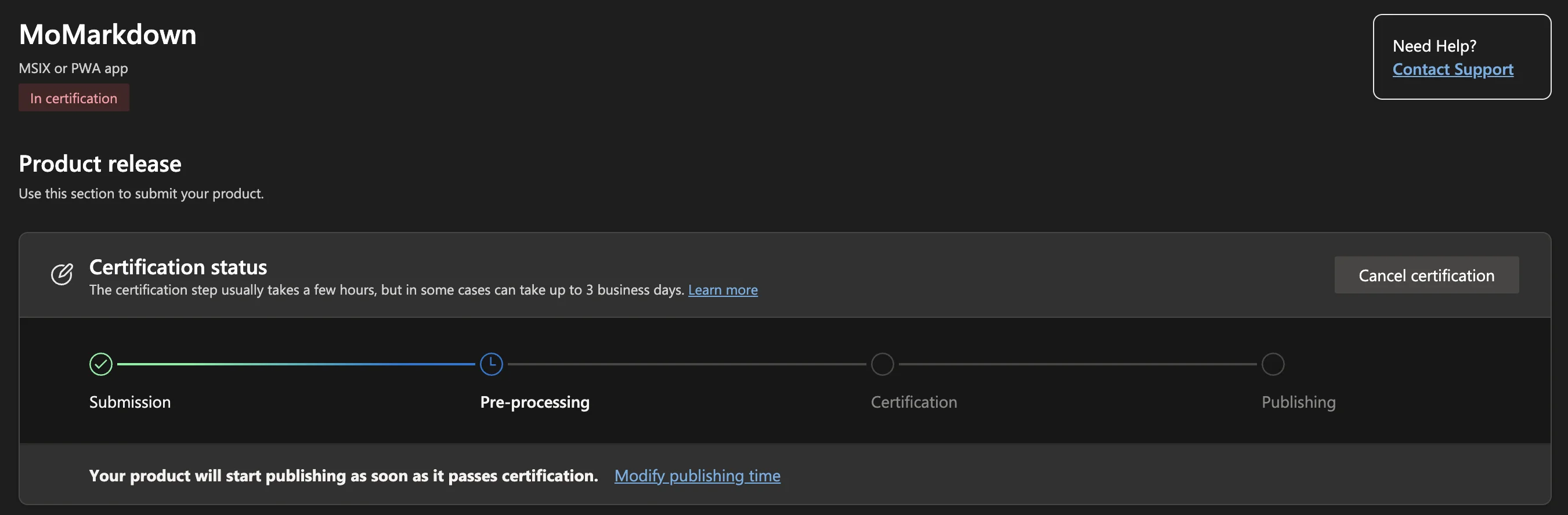
While the submission is in certification, you can still change when it’s published with Modify publishing time, or withdraw it with Cancel certification.
MoMarkdown passed certification in about a day, with no changes requested. Because we kept the default publishing option, the Store published it right away. The application overview now shows the In Microsoft Store status, and the Store presence section confirms that the product is available:
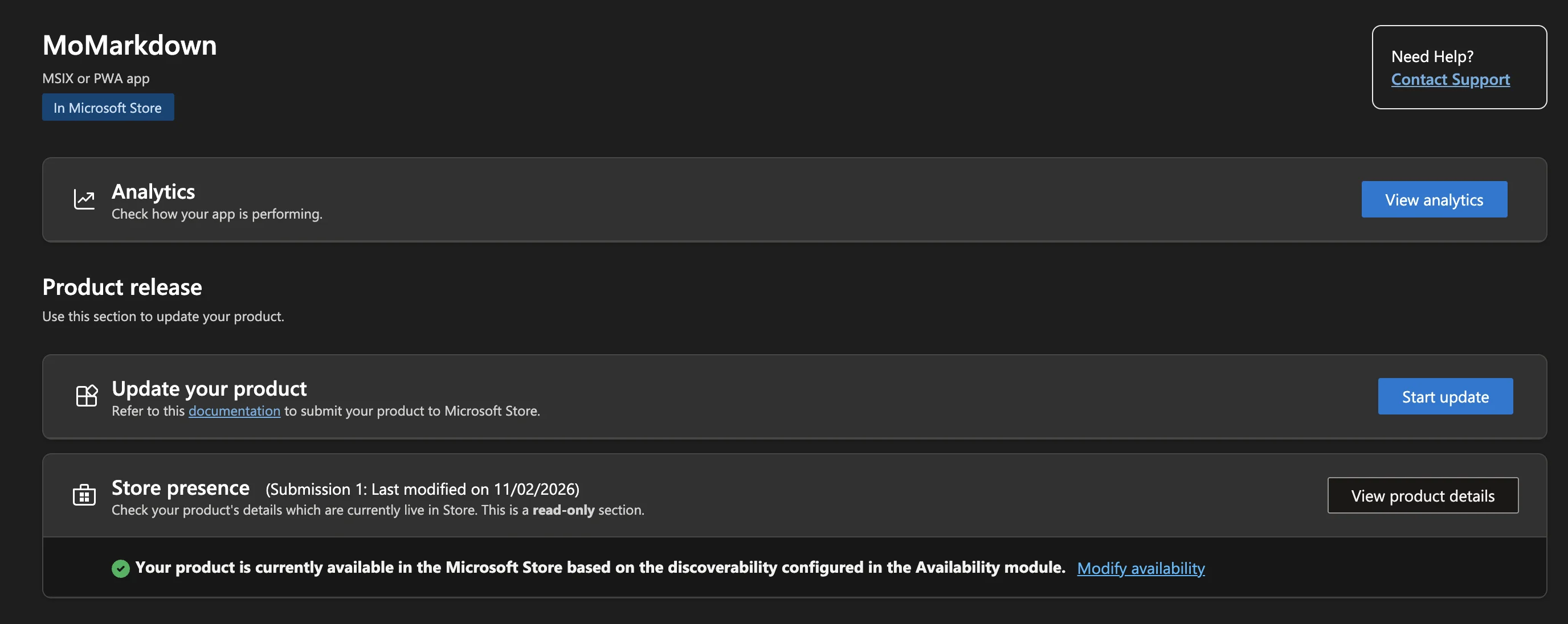
The listing you saw at the beginning of this tutorial shows what we entered in the submission: the publisher display name from the Product identity page, the category, the PEGI rating from the questionnaire, and the Store screenshots. Customers install the application with Get, and the Store keeps it up to date from then on.
To send people to the listing, use one of these links:
| Link | Opens |
|---|---|
https://apps.microsoft.com/detail/9NK2ZFSG236S | The listing on the web |
ms-windows-store://pdp/?productid=9NK2ZFSG236S | The listing in the Microsoft Store app |
9NK2ZFSG236S is the Store ID of MoMarkdown. Partner Center shows yours on
the Product identity page.
For a website or a README, Microsoft offers the “Get it from Microsoft” badge. The badge generator creates the HTML for your Store ID, for example:
<a href="https://apps.microsoft.com/detail/9NK2ZFSG236S?mode=direct">
  <img src="https://get.microsoft.com/images/en-us%20dark.svg" width="200"/>
</a>
To see how many people install the application, click View analytics on the application overview.
Shipping an update
To release a new version of MoMarkdown, for example, 1.0.1, increment
app.version, build the package again, and submit it as an update. The
steps are in
Releasing updates.
In Partner Center, the update starts with Start update in the Update
your product section of the application overview, and the changes go into
What’s new in this version on the Store listings page.
Troubleshooting
These are the problems we ran into while preparing MoMarkdown:
| Problem | Solution |
|---|---|
the sign command is invalid: requires @@BINARY_PATH@@ placeholder | Put @@BINARY_PATH@@ where SignTool expects the file to sign. |
Signing fails with The certificate subject must equal the package publisher | MōBrowser shows this hint for any SignTool failure. Run the sign command by hand to see the real error; for us, it was backslashes in the path that JSON escaped. |
| The identity name in the package differs from Partner Center by one letter | Copy the values from the Product identity page instead of typing them. We caught a missing letter before uploading; Partner Center would have rejected it. |
| The Windows App Certification Kit fails Blocked executables and warns about DPIAwarenessValidation | Expected for a MōBrowser application. See Run the Windows App Certification Kit. |
Package acceptance validation warning: … runFullTrust after the upload | Expected. Justify the capability on the Submission options page. |
| Properties requires a privacy policy, though the application collects no data | The runFullTrust capability makes it required. Without a website, select Provide privacy policy text and paste the policy. |
For other problems, see the troubleshooting section of the Publishing to Microsoft Store guide.
Summary
On the MōBrowser side, building the MoMarkdown package for the Microsoft Store took three commands:
npm run mobrowser -- icon --msix --source assets/icon-1024.png
npm run build
npm run pack -- --msix
We didn’t write a package manifest, draw any tile images, or run
makeappx.exe and makepri.exe by hand. The rest was testing the package,
copying three identity values from Partner Center, and filling in the six
submission pages. A day later,
MoMarkdown was in the
Store.
For every option and edge case, see the Publishing to Microsoft Store guide.