Quickstart
This quick tutorial shows how to get started with MōBrowser and create your first desktop application in a few minutes.
It’s perfect for the developers who are trying out MōBrowser for the first time. It walks you through the process of creating a project, installing dependencies, building and running the app, and packaging it into a native executable for distribution.
Prerequisites
- Windows 10 (64-bit) or later.
- Install Node.js version 20.11.0 or higher.
- macOS 14 (Apple Silicon) or later.
- Install Node.js version 20.11.0 or higher.
- Ubuntu 22.04 (64-bit) or later.
- Install Node.js version 20.11.0 or higher.
Creating a MōBrowser app
Make sure your current working directory is the one where you intend to create a project. Run the following command in your command line:
npm create mobrowser-app@latest
This command will install and execute our official project scaffolding tool. You will be presented with prompts for your project name, the preferred frontend framework, the UI component library, and language:
Once the project is created, follow the instructions to install dependencies and run your first MōBrowser app:
cd App
npm install
npm run mobrowser dev
You should now have your first MōBrowser app running!
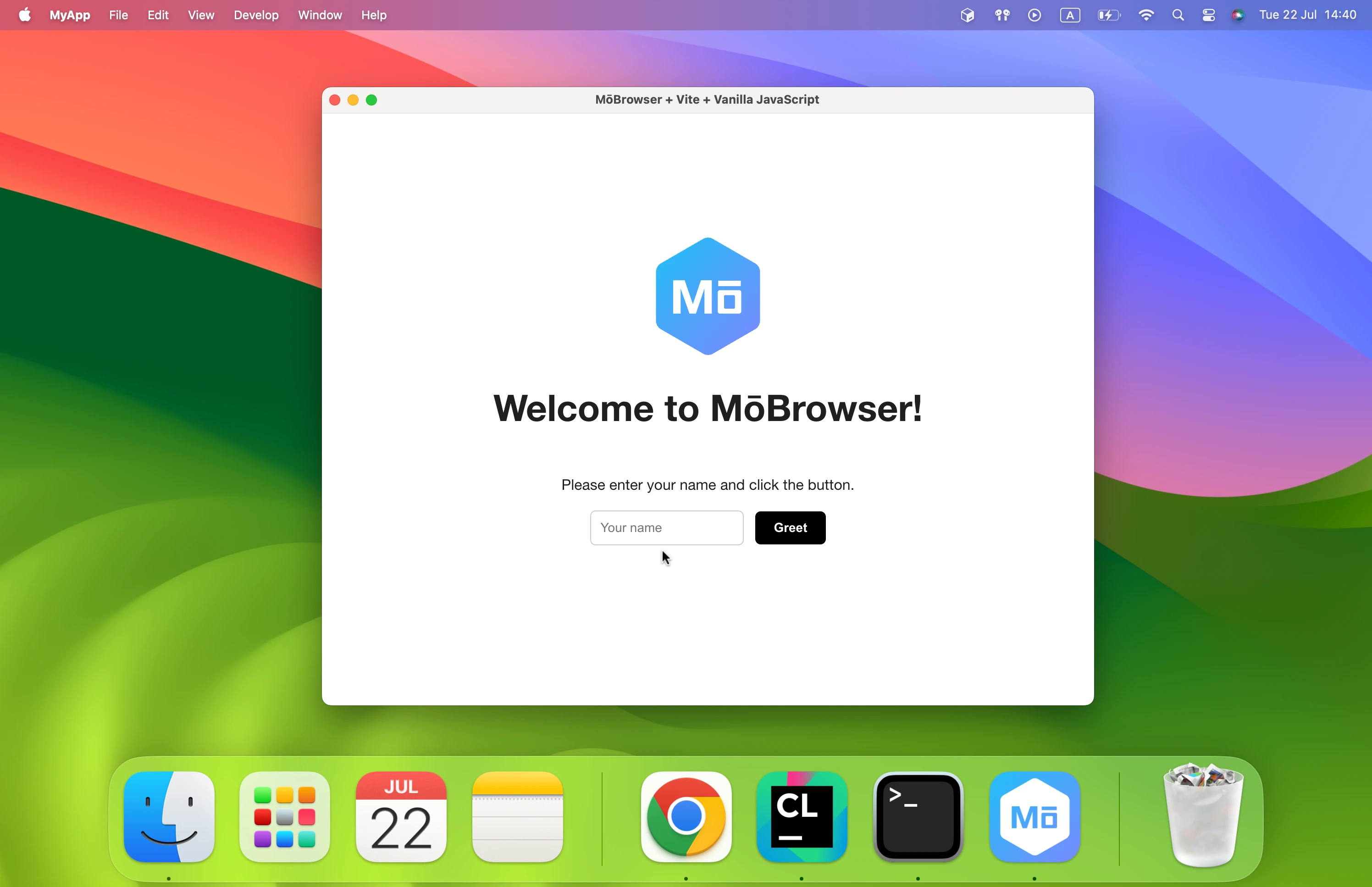
When you are ready to ship your app to production, run the following:
npm run mobrowser build
This command will build and pack your application into a native executable and place it in the
project’s build/dist/<platform>-<arch>/bin directory.
On macOS and Windows, it will also create a native installer and place it in the
build/dist/<platform>-<arch>/pack directory.
Next steps
You have now created a simple desktop application from scratch. We recommend reading about the core ideas and architecture of the framework or extend your app with advanced desktop features.