Packaging
How to build and package the application into a native executable and create native installer for Windows and macOS.
Overview
To build and package the application, open the project directory and run the following command in your command line:
npm run mobrowser build
This command will build the application, package it into a native executable, and create a native installer for the current platform.
Native installers
During build, a native installer for the current operating system is created. The installer is placed in the build/dist/<platform>-<arch>/pack directory.
Windows
On Windows your application is automatically packaged into a set of binary files with a native executable and a native installer.
These files are placed in the following directories:
build/
|-- dist/
|   `-- win-x64/
|   |   `-- bin/
|   |   |   `-- locales/
|   |   |   `-- resources/
|   |   |   `-- <APP_NAME>.exe
|   |   `-- pack/
|   |   |   `-- <APP_SETUP_NAME>-<APP_VERSION>.exe
|   |   |   `-- <PACKAGE_ID>-<APP_VERSION>-full.nuget
|   |   |   |-- releases.win.json
The native installer in build/dist/<platform>-<arch>/pack represents a self-contained executable file that can be distributed to your users. The installer is built with Velopack.
You can customize the installer properties in mobrowser.conf.json. In the config file, there’s the app → bundle → Windows → installer → exe section where you can customize the installer name, icon, and other properties:
{
  "exe": {
    "name": "",
    "icon": "",
    "installationGif": "",
    "packageId": "",
    "displayName": "",
    "shortcuts": "",
    "deltaStrategy": ""
  }
}
Here’s the description of the installer properties:
| Property | Description |
|---|---|
name | The name of the installer file. If not specified, the name will be generated from the application name and version (e.g. App-1.0.0.exe). |
icon | The path to the installer icon. If not specified, the installer will have the system’s default icon. |
deltaStrategy | A strategy for generating delta packages:
|
installationGif | The path to the installation GIF. The installation GIF is displayed when the installer is running. If not specified, the user will see the default system dialog with a progress bar during installation. |
packageId | An identifier for the NuGet package under which the application is stored in the system. It also determines the name of the folder where the application is installed. If not specified, the application’s name (with spaces removed) is used instead. |
displayName | The application name displayed in the system. Also, the same name is used for shortcuts. If not specified, the application’s name is used instead. |
shortcuts | A comma-separated list of shortcut locations.
Desktop,StartMenuRoot value is used. |
Important: Don’t forget to sign your application before distributing it. While not mandatory, code signing significantly enhances user trust and confidence in your application.
macOS
On macOS your application is automatically packaged into an .app (application bundle) and a .dmg (Apple Disk Image) file.
These files are placed in the following directories:
build/
|-- dist/
|   `-- mac-arm64/
|   |   `-- bin/
|   |   |   `-- <APP_NAME>.app
|   |   `-- pack/
|   |   |   `-- <APP_NAME>-<APP_VERSION>-<ARCH>.dmg
The application bundle is a directory with the executable file and all the resources needed to run the application. The application bundle is a self-contained directory that can be moved around the file system without breaking the application.
The DMG file is a disk image that contains the application bundle. The DMG file is a self-contained file that can be distributed to your users. This is the recommended way to distribute your application on macOS.
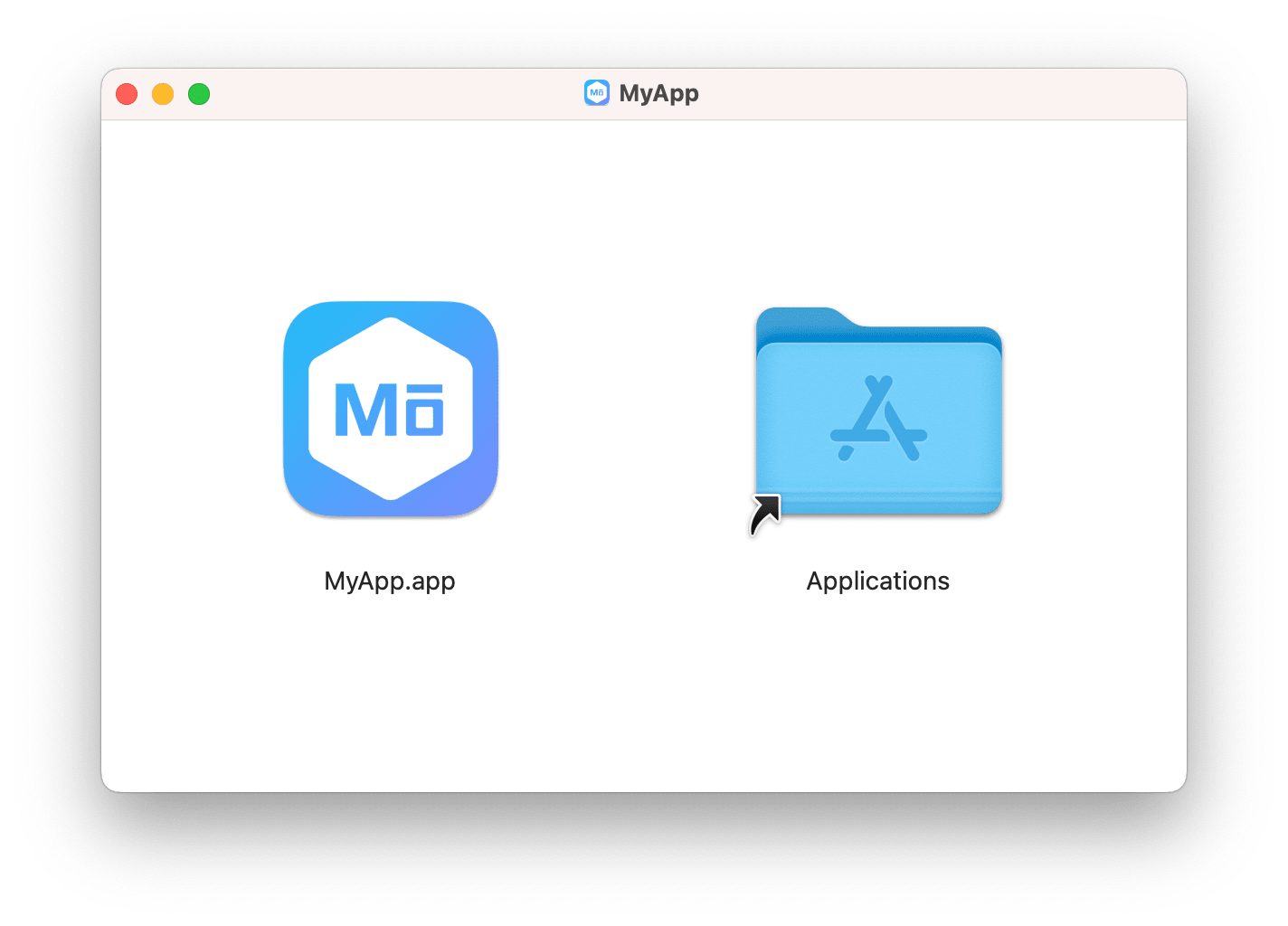
In mobrowser.conf.json, there’s the app → bundle → macOS → installer → dmg section where you can customize DMG properties:
{
  "dmg": {
    "name": "",
    "volumeName": "",
    "volumeIcon": "assets/app.icns",
    "eula": "",
    "deltaStrategy": "BestSize",
    "window": {
      "textSize": 14,
      "skipPrettifying": false,
      "backgroundImage": "",
      "position": {
        "x": 500,
        "y": 400
      },
      "size": {
        "width": 600,
        "height": 400
      },
      "icon": {
        "size": 150,
        "position": {
          "x": 160,
          "y": 160
        }
      },
      "appDropLink": {
        "x": 430,
        "y": 160
      }
    }
  }
}
Here’s the description of the DMG properties:
| Property | Description |
|---|---|
name | The name of the DMG file. If not specified, the name will be generated from the application name, version, and the current architecture (e.g. App-1.0.0-arm64.dmg). |
volumeName | The name of the volume that will be displayed in the Finder sidebar. If not specified, the name will be generated from the application name. |
volumeIcon | The path to the volume icon. If not specified, the standard volume icon will be used. |
eula | The path to the End User License Agreement (EULA) file. The text from this file will be displayed in the modal dialog that will be shown when opening DMG. In this modal dialog the user must accept or decline the license agreement. If not specified, the license agreement dialog will not be shown. |
window.textSize | The size of the text in the DMG window. |
deltaStrategy | A strategy for generating delta packages:
|
window.skipPrettifying | If true, the DMG window will not be prettified (the DMG window customization will be skipped). You might want to skip prettifying in macOS environments where there’s no logged-in user (e.g. CI build agent). |
window.backgroundImage | The path to the background image. If not specified, the DMG window will not display a background image. |
window.position | The position of the DMG window on the main screen. |
window.size | The size of the DMG window in points. |
window.icon.size | The size of the application icon in the DMG window. |
window.icon.position | The position of the application icon in the DMG window. |
window.appDropLink | The position of the application drop link in the DMG window. |
Here’s how the DMG window looks like by default:
Important: Don’t forget to sign and notarize your macOS application before distributing it. On macOS Catalina and later Gatekeeper enforces applications to be signed and notarized. Otherwise, users won’t be able to run it.