Branding
This page describes how to customize the application details such as name, icon, description, version, copyright, etc.
Overview
You can customize the application name, icon, description, copyright, version, etc. by editing the corresponding properties in mobrowser.conf.json located in the root directory of your project.
{
  "app": {
    "name": "App",
    "version": {
      "major": "1",
      "minor": "0",
      "patch": "0"
    },
    "author": "Company Name",
    "copyright": "Copyright © 2026 Company Name",
    "description": "Application description",
    "bundle": {
      "macOS": {
        "icon": "assets/app.icns",
        "bundleID": "com.company.App",
        "codesignIdentity": "",
        "codesignEntitlements": "assets/entitlements.plist",
        "teamID": "",
        "appleID": "",
        "password": ""
      },
      "Windows": {
        "icon": "assets/app.ico",
        "signCommand": "",
      },
      "Linux": {
        "icon": "assets/app.png"
      }
    },
    ...
  }
}
Application details
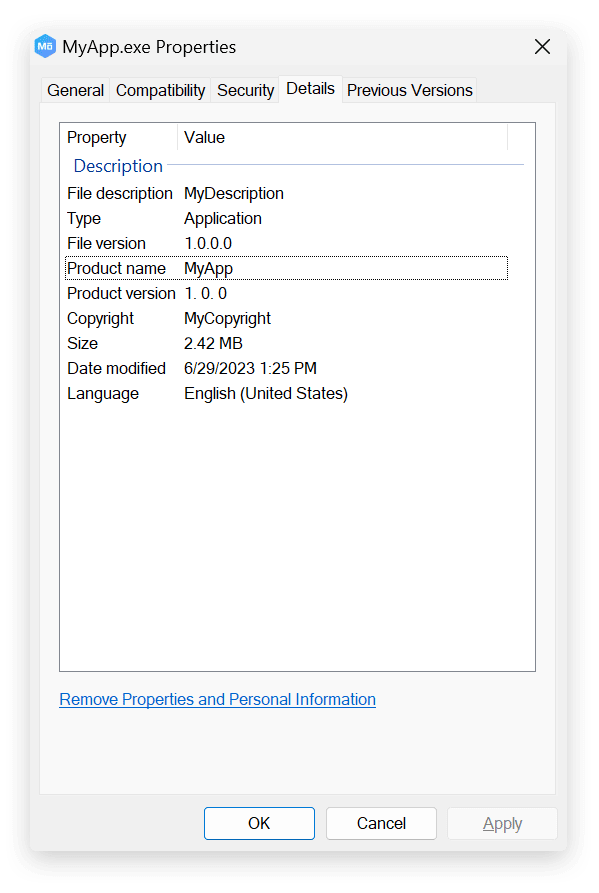
We recommend that you provide version, author, copyright, and description if you build your application for Windows.
These properties will be displayed in the application Properties:
Application icon
To change the application icon, just replace the existing platform-specific icon files in the assets folder in the root directory of your project with your own ones in the same format. Different platforms require different icon formats.
Windows
The app icon is located in assets/app.ico. You can replace it with your own.
There’s no integrated software on Windows that allow generating ICO files. To save your time, we provide a built-in icon generator tool for Windows. You can use it to create an ICO file from a set of PNG files with different dimensions. Just put your PNG 32-bit images with the following names and dimensions into some directory:
| Name | Dimensions |
|---|---|
icon_16x16.png | 16x16 |
icon_24x24.png | 24x24 |
icon_32x32.png | 32x32 |
icon_48x48.png | 48x48 |
icon_256x256.png | 256x256 |
Then, run the following command in the terminal from the root directory of your project:
npm run mobrowser icon -- --sources <path-to-directory> --output app.ico
The app.ico file will be generated in the root directory of your project.
You can replace the default icon located at assets/app.ico with the new one manually, or you can do it automatically using the following command:
npm run mobrowser icon -- -sources <path-to-the-folder>
This command will generate the new icon and put it into assets/app.ico replacing the existing one.
macOS
The app icon for macOS is located in assets/app.icns. The icon must be in the *.icns format.
To create your own app icon, put your app icon images with the following names and dimensions into some directory:
| Name | Dimensions |
|---|---|
icon_16x16.png | 16x16 |
icon_16x16@2x.png | 32x32 |
icon_32x32.png | 32x32 |
icon_32x32@2x.png | 64x64 |
icon_128x128.png | 128x128 |
icon_128x128@2x.png | 256x256 |
icon_256x256.png | 256x256 |
icon_256x256@2x.png | 512x512 |
icon_512x512.png | 512x512 |
icon_512x512@2x.png | 1024x1024 |
Then, follow these steps:
- Rename the directory to:
icon.iconset. - Confirm the file extension when prompted.
- Navigate to the directory containing your
icon.iconsetin the terminal. - Run
iconutilwith the following command:iconutil -c icns icon.iconset. - Your
icon.icnswill be generated in the current directory.
Linux
The app icon for Linux is located in assets/app.png. The icon represents a simple image in the PNG format with the 128x128 dimension. This dimension is enough for most Linux distributions.