Automatic Updates
How to setup everything needed to enable automatic updates in your application.
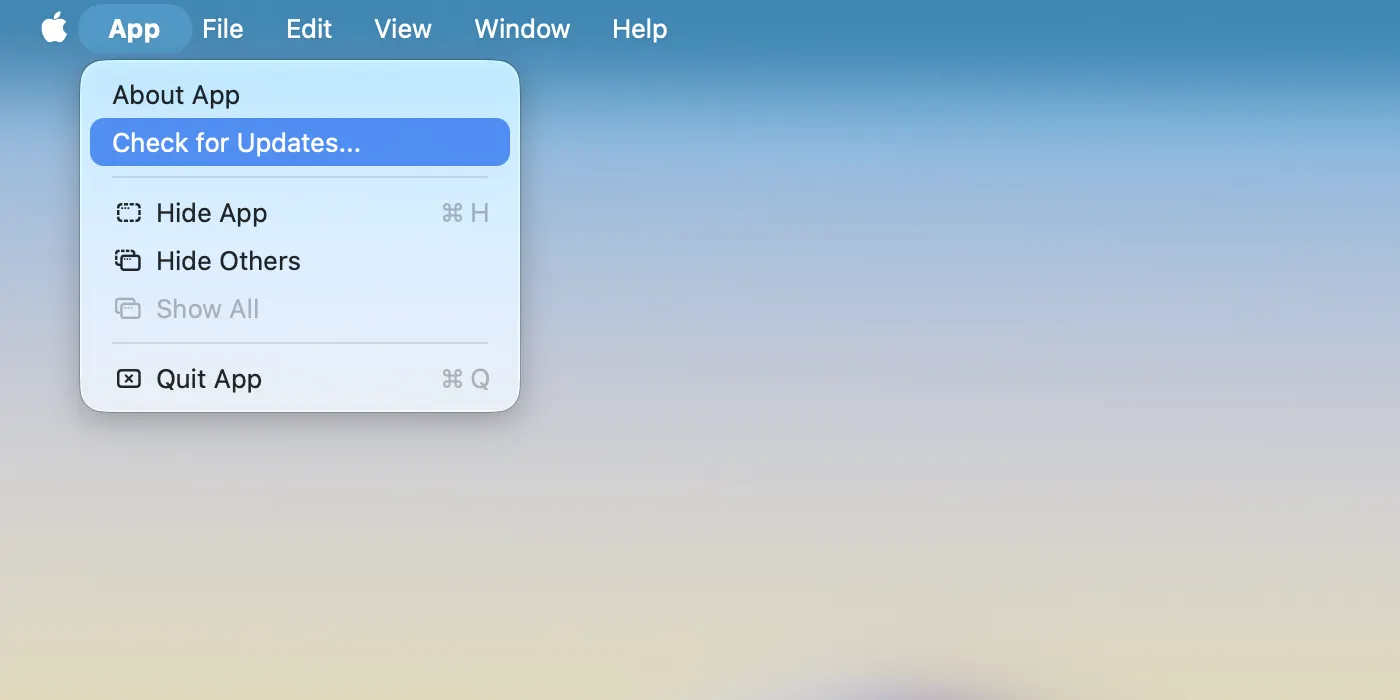
MōBrowser provides a built-in mechanism to check for updates, download the latest version of your application, and install it. This feature is useful when you want to distribute updates to your users without them having to manually download and install the new version of your application.
Enabling automatic updates in your application consists of several steps including:
- Configuring an update server.
- Adding update functionality to your application.
- Building the application and generating the update files.
- Uploading the update files to the update server.
More details about each step are provided in the sections below.
Note: On Windows, the application can be auto-updated only if it’s installed using the native installer generated by MōBrowser. If you distribute your application in any other way (e.g., by manually copying the executable files or as a ZIP archive), the auto-update functionality will not work.
Configuring an update server
First, you need to set up an update server that will host the new versions of your application. The update server is a simple HTTP server that hosts the files and allows everyone to download them using a direct link. You can use a third-party service like Amazon S3 or Google Cloud Storage as an update server.
Once you set up the update server, remember its URL. You will need it in the next step.
Checking for updates in the app
The automatic update functionality in MōBrowser is very flexible. You decide how exactly your application should check for updates, download and install them.
- You can check for updates in the background. When a new version of your application is available, you can download and install it automatically and ask the user to restart the application to apply the update.
- You can check for updates at the application startup, download and install them, and programmatically restart the application to make sure the user launches the latest version of your application.
- You can check for updates on demand when user selects “Check for Updates…” from the application menu or clicks a button in the Settings dialog. If a new version of your application is available, you can ask the user if they want to download and install it.
The following sections demonstrate how to check for updates, download and install them, retrieve update information, dismiss specific updates, and monitor installation progress.
Checking for updates
To check for updates, you need to know the update server URL that you should pass to the checkForUpdate() method as shown below:
import { app } from '@mobrowser/api';

const result = await app.checkForUpdate('https://app.com/updates')
The checkForUpdate() method returns a Promise that resolves to one of the following:
- An
AppUpdateobject if an update is available undefinedif no update is available- A
stringcontaining an error message if an error occurs while checking for updates (e.g., no internet connection, update server is unreachable, or update files are missing on the server)
import { app, AppUpdate } from '@mobrowser/api';

const result = await app.checkForUpdate('https://app.com/updates')
if (!result) {
  // No update is available or do nothing.
} else if (typeof result === 'string') {
  // An error occurred while checking for updates.
} else {
  const appUpdate: AppUpdate = result
  console.log('Update available: ', appUpdate.version)
}
Downloading and dismissing update
If an update is available, you can download it by calling the download() method of the AppUpdate object. To apply
the update, you need to restart or quit the application after it is downloaded:
const downloadResult = await appUpdate.download()
if (!downloadResult.success) {
  console.error(`Update download failed: ${downloadResult.error}`)
}
Or you can dismiss the update if you don’t want to download it:
appUpdate.dismiss()
Dismissing an update means that you don’t want to download it at this time. This could be because the user chose not to install it, the update contains known issues, or for any other reason you determine. When you check for updates again later, the dismissed update will still be available for download.
Note: Each AppUpdate instance can only be downloaded or dismissed once. Subsequent calls to download() or dismiss() on the same instance will be no-op.
Download progress
Downloading an update may take some time depending on your internet connection speed and the size of the update.
You can get notifications about the download progress by subscribing to the progressChanged event:
appUpdate.on('progressChanged', (progress: number) => {
  console.log(`Downloading update: ${progress}%`)
})
const downloadResult = await appUpdate.download()
Restarting the application
After the update is downloaded, you can ask the user to restart the application to apply the update or wait for the user to restart the application manually.
const downloadResult = await appUpdate.download()
if (downloadResult.success) {
  const result = await app.showMessageDialog({
    parentWindow: win,
    title: `A new version ${appUpdate.version} is available!`,
    message: 'Restart to apply the update?',
    buttons: [
      { label: 'Restart', type: 'primary' },
      { label: 'Cancel', type: 'secondary' }
    ]
  })
  if (result.button.type === 'primary') {
    app.restart()
  }
}
To restart the application programmatically, use the application restart functionality.
Generating the update files
Now, you are ready to build your application with the automatic update functionality enabled and generate the update files. Run the following command:
npm run mobrowser build
This command will build the application, package it into a native executable, create a native installer, and generate the update files you need to upload to the update server.
The automatic update functionality is supported on macOS and Windows only.
On Windows, you will find the update files in /build/dist/win-x64/pack/:
build/
|-- dist/
|   `-- win-x64/
|   |   `-- pack/
|   |   |   `-- <PACKAGE_ID>-<APP_VERSION>-full.nuget
|   |   |   `-- releases.win.json
On macOS, you will find the update files in /build/dist/mac-arm64/pack/:
build/
|-- dist/
|   `-- mac-arm64/
|   |   `-- pack/
|   |   |   `-- <BUNDLE_ID>-<APP_VERSION>-osx-full.nuget
|   |   |   `-- releases.osx.json
Delta updates
You will most likely want to use the delta updates, which allow your users to download only the changes between versions instead of the entire application. It’s significantly faster to download and install the delta update than the full update.
To generate the delta update files, specify the --releases option that points to the directory containing the previous releases:
npm run mobrowser -- --releases=path/to/previous-releases
The framework will generate the files for the full update (releases.<platform>.json and *-full.nuget) in the given directory as usual.
If the directory contains the full update files from the previous releases, the framework will automatically generate the *-delta.nupkg package for delta updates, and extend the existing releases.<platform>.json file with the new release information.
Uploading the update files
You need to manually upload the following files to the update server:
*-full.nupkg— a full NuGet package for the new version of your application. This package is used when the user installs the update from scratch or when no previous version is available locally.*-delta.nupkg— a delta NuGet package that contains only the differences between the previous and the new version of your application. This package is significantly smaller than the full package and allows faster updates. Delta packages are generated automatically when the--releasesdirectory contains full.nupkgfiles from previous releases.releases.<platform>.json— this file contains the information about the available updates for Windows. It’s a JSON file with the list of the available updates, including both full and delta packages. You need to update this file on your update server every time you release a new version of your application. This file should have the same location as NuGet packages on your update server.
Make sure the uploaded files on your update server are publicly accessible, so that your desktop application can download them.