Main Process
This is where your application (backend) business logic runs and all system resources are managed.
Overview
The main process is a Node.js process and the single entry point of your MōBrowser application. When you launch your application, MōBrowser starts the main process first.
Think of the main process as your backend server. It manages the application lifecycle, creates and controls windows, and provides access to system resources. Just as a backend server handles requests from the browser, the main process handles requests from the renderer processes.
The main process is responsible for:
- Managing the application lifecycle.
- Creating and controlling application windows, dialogs, system tray, and menus.
- Accessing native operating system APIs such as the file system, downloads, clipboard, and global shortcuts.
- Communicating with renderer processes via IPC.
- Loading and calling an optional native C++ module.
Source code
The main process source code is located in the src/main/ directory of your project. This directory contains the index.ts file. This is the main entry point of your application. It is executed in the main process when the application starts.
.vscode/
assets/
resources/
src/
├── main/
    ├── index.ts
├── renderer/
mobrowser.conf.json
package.json
tsconfig.json
tsconfig.node.json
vite.config.ts
Application lifecycle
In the src/main/index.ts file you can implement your application business logic, create application windows, tray items, register global shortcuts, etc.
import { app } from '@mobrowser/api';

console.log(`Application name: ${app.name}`)
console.log(`Application version: ${app.version}`)
The application will be running until you call app.quit(), the user closes all windows (Windows/Linux) or terminates the application manually.
Application windows
The main process creates and controls BrowserWindow instances. Each browser window runs in a separate renderer process. It’s launched automatically when you create a window:
import { app, BrowserWindow } from '@mobrowser/api';

// Create a new browser window.
const win = new BrowserWindow()
win.browser.loadUrl('https://example.com')
win.show()
When the browser window is closed, the corresponding renderer process terminates and releases all allocated memory.
Read more about the renderer processOperating system APIs
The main process has full access to Node.js built-in modules and to native operating system APIs. Renderer processes cannot use these APIs directly due to sandbox restrictions. The following capabilities are available exclusively from the main process:
- File system. Read, write, and manage files using the Node.js
fsmodule. - System tray. Create and manage tray icons with menus.
- Menus. Create native application menus and context menus.
- Dialogs. Show native file open, save, and message dialogs.
- Clipboard. Read from and write to the system clipboard.
- Global shortcuts. Register keyboard shortcuts that are triggered even when the application does not have focus.
IPC with renderer processes
Each renderer process runs in a sandbox that restricts access to the file system, network, and other system resources. When the renderer process needs to perform a privileged operation, it sends a message to the main process via IPC (Inter-Process Communication). The main process handles the request and sends a response back.
Read more about IPCNative C++ module
For scenarios that require maximum performance or access to platform-specific APIs not available through Node.js, you can load an optional native C++ module in the main process. The native module can be called directly from your TypeScript code.
Read more about the native C++ moduleDebugging
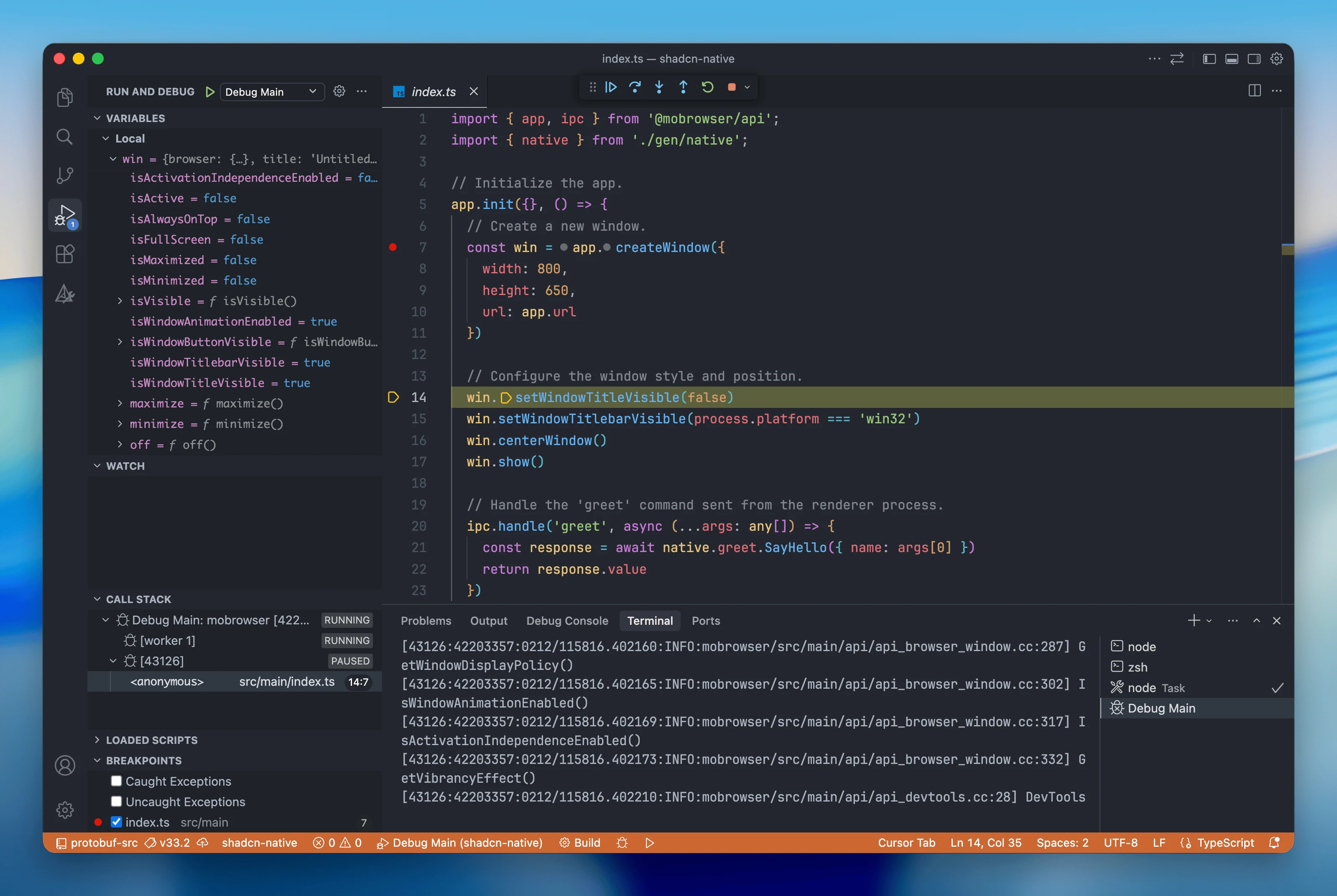
Each generated project is compatible with Visual Studio Code debugger and includes the .vscode/launch.json file that allows you to debug the source code that is running in the main process or both the main and renderer processes.
Visual Studio Code
To debug the source code in the main process, open the project directory in Visual Studio Code or any other VS Code-based IDE such as Cursor or Google Antigravity.
Set the breakpoints in src/main/index.ts, and start the debugging session by pressing F5 or by clicking the Debug button in the VS Code toolbar.
You should be able to hit the breakpoints and inspect the variables and call stack.
Logging
During debugging, you might want to enable logging to access valuable information, track the flow of execution, identify potential issues, diagnose and fix problems more efficiently.
You can print messages to the console using the Console API in the main process:
import { app } from '@mobrowser/api';

console.log(`Application version: ${app.version}`)
If you run the application in the development mode, the messages will be displayed in the console output window.
Application version: 1.0.0