DotNetBrowser 中的 Google Maps
Google Maps 没有 .NET API。地图是一个网页,对它的所有操作都通过 Maps JavaScript API 完成。本教程介绍如何在 WinForms 应用程序中显示该页面,并通过 .NET 代码驱动地图。
DotNetBrowser 可实现两个方向的互通。在 .NET 端,IJsObject 保存对 JavaScript 对象的实时引用,使您可以读取其属性并调用其方法。在页面端,作为 window.external 注入的对象允许 JavaScript 调用您的 .NET 代码。本文构建的应用程序同时使用这两个方向:.NET 更改缩放级别并添加标记,而页面则在地图准备就绪以及确定当前位置后将消息返回给 .NET。
完整示例可在 DotNetBrowser-Examples 代码仓库中获取,包括 C# 和 VB.NET 版本。
前提条件
您需要一个 Google Maps JavaScript API 密钥。请在 Google Cloud 控制台中创建密钥,并为其启用 Maps JavaScript API。
本教程从本地文件系统加载地图页面。以这种方式加载的页面不会发送 referrer,因此 Google 会拒绝受 HTTP referrer 限制的密钥,并返回 RefererNotAllowedMapError。学习本教程时,请使用不受限制的密钥。
请仅将其用作本地开发设置,不要随产品一起交付。在生产环境中,应通过 HTTP 或 HTTPS 从您控制的来源提供该页面,并将密钥限制为仅用于该来源。
加载地图
将地图放在应用程序旁边的一个 HTML 文件中。Google 通过内联引导加载器加载 Maps JavaScript API。该加载器会异步获取库并公开 google.maps.importLibrary():
<div id="map"></div>

<script>
    (g => {
        // 引导加载器,原样复制自 Google 文档。
    })({
        key: "API_KEY",
        v: "weekly"
    });
</script>
将 API_KEY 替换为您自己的密钥。完整的加载器主体位于示例的 map.html 文件中。
接下来创建地图。importLibrary() 返回一个 Promise,因此构建地图的代码会异步运行:
let map;

async function initMap() {
    const {Map} = await google.maps.importLibrary("maps");
    await google.maps.importLibrary("marker");

    map = new Map(document.getElementById("map"),
        {
            center: {lat: 48.209331, lng: 16.381302},
            zoom: 4,
            mapId: "DEMO_MAP_ID"
        });

    window.external.OnMapInitialized(map);
}

initMap();
这里有三个细节需要注意。map 变量是全局变量,因此 .NET 之后可以访问该地图。marker 库会预先导入,这样从 .NET 添加标记时就不必等待 promise。最后,代码通过调用 window.external 将创建完成的地图传递给 .NET——下一节将说明如何提供这个对象。
DEMO_MAP_ID 是 Google 提供的地图 ID,您无需事先创建地图 ID 即可用它试用高级标记。请在交付产品之前将其替换为您自己的地图 ID:您自己的地图 ID 会将地图与在 Google Cloud 控制台中配置的样式关联起来,之后更改该样式时无需更新应用程序。请参阅获取地图 ID。
请通过 file:// URI 加载页面,而不是直接使用 Windows 路径:
browser.Navigation.LoadUrl(new Uri(Path.GetFullPath("map.html")).AbsoluteUri);
将页面连接到 .NET
上述页面会调用 window.external.OnMapInitialized(map),但 external 并非标准浏览器对象。您需要通过处理 InjectJsHandler 将其添加到页面中。DotNetBrowser 会在创建 JavaScript 上下文之后、运行页面脚本之前调用该处理程序:
// 将此窗体作为 window.external 注入页面,以便
// map.html 可以回调 .NET。
browser.InjectJsHandler = new Handler<InjectJsParameters>(OnInjectJs);
' 将此窗体作为 window.external 注入页面,以便
' map.html 可以回调 .NET。
browser.InjectJsHandler = New Handler(Of InjectJsParameters)(AddressOf OnInjectJs)
该处理程序将窗体本身赋值给 window.external,使 JavaScript 可以调用窗体的公共方法。OnMapInitialized 就是其中之一。它以 IJsObject 的形式接收 JavaScript 地图对象并将其存储起来:
/// <summary>
///     在 Maps JavaScript API 加载完成且地图创建完成后,
///     由 map.html 调用。
/// </summary>
public void OnMapInitialized(IJsObject jsMap)
{
    map = new GoogleMap(jsMap);
    BeginInvoke((Action) (() => mapControls.Enabled = true));
}
''' <summary>
'''     在 Maps JavaScript API 加载完成且地图创建完成后,
'''     由 map.html 调用。
''' </summary>
Public Sub OnMapInitialized(jsMap As IJsObject)
	map = New GoogleMap(jsMap)
	BeginInvoke(New Action(Sub() mapControls.Enabled = True))
End Sub
等待此回调可以确保应用程序的其余部分可靠运行。只有在 importLibrary() 完成后地图对象才会存在,因此,任何在 OnMapInitialized 运行之前操作该对象的代码都会失败。示例会在此之前保持工具栏的禁用状态。
有关 .NET 与 JavaScript 之间相互调用的更多信息,请参阅 JavaScript 指南。
更改缩放级别
获得地图对象后,便可以通过 IJsObject 调用其方法。将其封装在一个小型类中,可将与 JavaScript 相关的细节集中在一处:
public int Zoom
{
    get { return (int) map.Invoke<double>("getZoom"); }

    set
    {
        int zoom = Math.Min(MaxZoomLevel, Math.Max(MinZoomLevel, value));
        map.Invoke("setZoom", zoom);
    }
}
Public Property Zoom() As Integer
	Get
		Return CInt(map.Invoke(Of Double)("getZoom"))
	End Get

	Set
		Dim zoomLevel As Integer = Math.Min(MaxZoomLevel, Math.Max(MinZoomLevel, Value))
		map.Invoke("setZoom", zoomLevel)
	End Set
End Property
Invoke 调用 JavaScript 函数,并返回已转换为所请求 .NET 类型的结果。Google Maps 以 JavaScript 数值形式返回缩放级别,该值传递到 .NET 后为 double 类型。
Invoke 会阻塞调用线程,直至浏览器返回结果,因此不得在 UI 线程上运行它。请从后台线程调用该方法;需要更新控件时,再将结果封送回 UI 线程。
同样的规则也适用于另一个方向。JavaScript 通过 window.external 调用的方法会在浏览器线程上运行,因此该方法不应再发起会造成阻塞的 JavaScript 调用。
添加标记
标记也是 JavaScript 对象,您可以从 .NET 创建它们。请在页面上下文中构建对象,然后设置其属性:
// 在页面上下文中创建标记,并将其附加到地图。
IJsObject marker = Frame
                  .ExecuteJavaScript<IJsObject>(
                       "new google.maps.marker.AdvancedMarkerElement({map: map})")
                  .Result;

// AdvancedMarkerElement 以属性形式公开位置,而不是
// 通过 setter 方法公开。
marker.Properties["position"] = ToLatLngLiteral(latitude, longitude);
' 在页面上下文中创建标记,并将其附加到地图。
Dim marker As IJsObject =
	Frame.ExecuteJavaScript(Of IJsObject)(
		"new google.maps.marker.AdvancedMarkerElement({map: map})").Result

' AdvancedMarkerElement 以属性形式公开位置,而不是
' 通过 setter 方法公开。
marker.Properties("position") = ToLatLngLiteral(latitude, longitude)
ExecuteJavaScript<IJsObject> 对构造函数调用求值,并返回对新标记的引用。随后为 Properties["position"] 赋值即可设置标记的位置,与在 JavaScript 中赋值完全相同。
ExecuteJavaScript 返回一个 Task,而读取 .Result 会等待该任务完成。这与 Invoke 一样会阻塞调用线程,因此同样的规则也适用于此处:示例从后台线程调用此方法。
另外两项限制来自 Google Maps,而非 DotNetBrowser。高级标记只能显示在使用地图 ID 创建的地图上,因此 initMap() 会传入 mapId。此外,高级标记取代了 google.maps.Marker,后者已于 2024 年 2 月被 Google 弃用。
位置坐标特意使用固定区域性格式构建。JSON 要求使用点号作为小数分隔符,因此,如果区域设置使用逗号作为小数分隔符,生成的坐标将无法被页面解析。
启用地理位置功能
示例中的“我的位置”按钮会请求页面获取当前位置。Chromium 将地理位置视为一项权限,并默认拒绝该权限,因此应用程序必须通过配置文件上的处理程序授予权限:
// navigator.geolocation 会请求一项权限;除非权限处理程序
// 授予该权限,否则请求将被拒绝。
engine.Profiles.Default.Permissions.RequestPermissionHandler =
    new Handler<RequestPermissionParameters, RequestPermissionResponse>(p =>
        p.Type == PermissionType.Geolocation
            ? RequestPermissionResponse.Grant()
            : RequestPermissionResponse.Deny());
' navigator.geolocation 会请求一项权限;除非权限处理程序
' 授予该权限,否则请求将被拒绝。
engine.Profiles.Default.Permissions.RequestPermissionHandler =
	New Handler(Of RequestPermissionParameters, RequestPermissionResponse)(
		Function(p)
			If p.Type = PermissionType.Geolocation Then
				Return RequestPermissionResponse.Grant()
			End If
			Return RequestPermissionResponse.Deny()
		End Function)
权限指南详细介绍了该处理程序。
仅授予权限还不够。Chromium 通过 Google 服务确定位置,而该服务需要自己的凭据:请按照引擎指南中的说明启用 Google Maps Geolocation API,并将密钥传递给引擎。这些密钥与 map.html 中的 Maps JavaScript API 密钥相互独立,不能互相替代。
故障排除
地图短暂显示后被 “Oops! Something went wrong.” 取代。 Google 会在渲染首批地图图块后验证 API 密钥,因此密钥问题会延迟一两秒才显现。可能是密钥缺失、无效,或者受到 HTTP referrer 限制。请打开 DevTools 控制台查看具体错误代码。
标记始终不显示,但地图其他部分正常。 创建地图时未使用地图 ID。高级标记需要地图 ID。
地理位置功能失败且错误消息为空。 当 Chromium 无法访问位置服务时,报告的 GeolocationPositionError.message 为空。请配置引擎级 Google API 密钥。
结果
应用程序会显示地图,在不同缩放级别之间切换,并在您输入的坐标处放置标记:
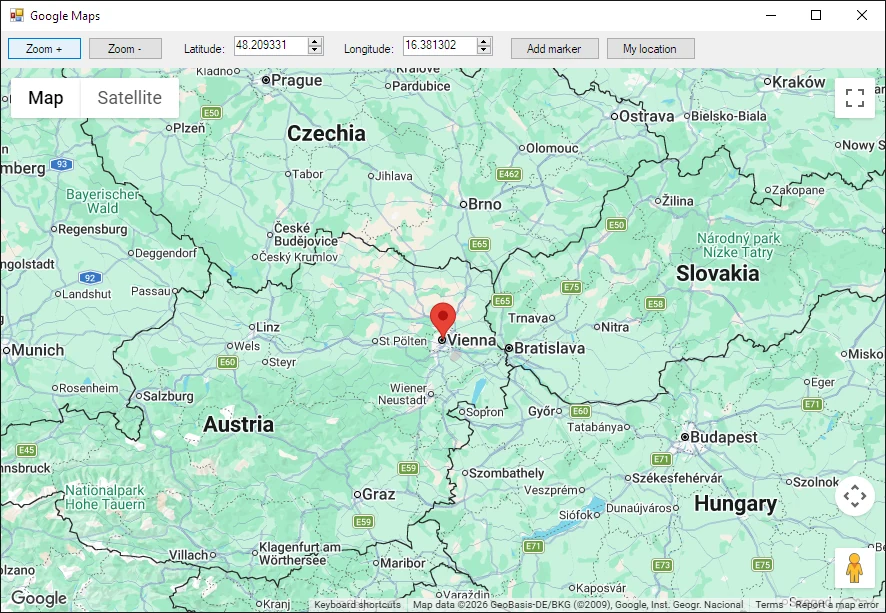
从 .NET 代码添加标记后的示例应用程序。